
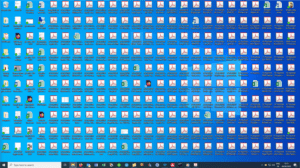
Organizing Your Desktop: A Comprehensive Guide
Are you tired of having a cluttered and disorganized desktop? Do you struggle to find the programs and files you need, buried under a sea of icons and folders? Look no further! In this article, we will explore the best ways to organize your desktop, using various software and techniques.
Understanding The Problem
Having a cluttered desktop can be frustrating and time-consuming. It’s easy to get overwhelmed with too many icons, files, and folders on our screen. This can lead to:
- Difficulty finding what you need
- Slower computer performance
- Increased stress levels
The Solution: Software to Organize Your Desktop
Fortunately, there are several software programs available that can help you organize your desktop in a efficient and effective way.
Windows Programs
Fences
Fences is a popular program that allows you to divide your desktop into thematic areas. You can create custom fences, add icons, and even set rules for icon behavior. Fences is user-friendly and offers a free trial version.
To install Fences:
- Visit the official website and click on “Get it Now”
- Click on the link “Try Free for 30 days” to download the trial version
- Open the downloaded file (Fences4-sd-setup.Exe) and follow the prompts
Icu — Icon Configuration Utility
ICU is another useful program that allows you to save and restore your desktop layout quickly. It’s free, user-friendly, and doesn’t require installation.
To use ICU:
- Visit the website and click on the link “ICU — vXX — Executable (9999)”
- Download the file and extract it to a folder
- Run the executable file (ICU.Exe) and specify where to save your desktop layout
Other Free Programs
If you’re looking for alternative solutions, here are some other free programs that can help you organize your desktop:
- Shock Desktop: A program that allows you to create custom desktop layouts, hide icons during inactivity, and restore them with a single click.
- Nimi Places: A user-friendly program that lets you organize your desktop into customizable folders and menus.
- Autohidedesktopicons: A simple program that conceals your desktop icons during periods of inactivity.
Mac Programs
If you’re using a Mac, here are some programs that can help you clean up your desktop:
Clean
Clean is an excellent application that allows you to delete unnecessary icons and files from your desktop. It’s easy to use and doesn’t require installation.
To install Clean:
- Visit the App Store and click on “Install”
- Open the downloaded file (Clean.App) and follow the prompts
Other Softwares
If Clean doesn’t meet your needs, here are some alternative programs that can help you organize your Mac desktop:
- Folder Tidy: A program that allows you to clean up your folders and delete unnecessary files.
- Hazel: A powerful program that lets you set rules and filters for file organization.
- Unclutter: An organizer that collects temporary files, pins, and other items in a designated area.
Conclusion
Organizing your desktop can be a daunting task, but with the right software and techniques, it’s achievable. Whether you’re using Windows or Mac, there are plenty of programs available to help you create a clutter-free and efficient workspace. Remember to:
- Use icons of appropriate size for your monitor
- Avoid setting your desktop as a download folder
- Consider using alternative solutions if necessary
Frequently Asked Questions
- Q: Which program should I use?
A: It depends on your specific needs, but Fences and Clean are popular choices. - Q: Are these programs safe to use?
A: Yes, they are all user-friendly and safe to download from reputable sources. - Q: Do I need to pay for some of these programs?
A: Some programs offer free trials or versions, while others require a one-time payment. - Q: Can I customize the behavior of my icons?
A: Yes, many programs allow you to set rules and filters for icon behavior. - Q: How do I restore my desktop layout?
A: Most programs have an option to save and restore your desktop layout. - Q: Are these programs compatible with Windows 11?
A: Some programs may not be fully compatible with the latest operating system, but most can be adapted or updated accordingly. - Q: Can I use multiple programs at once?
A: Yes, you can use multiple programs to achieve your desired desktop organization.
By following this comprehensive guide, you’ll be able to create a clutter-free and efficient workspace that suits your needs.


