
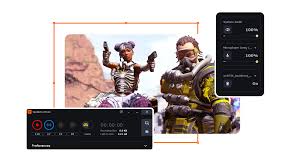
Recording Your Epic Gameplays: A Guide to The Best Free Programs
Are you an avid gamer looking to record your most epic gameplay moments and share them with friends? Do you want a hassle-free system to explain how you exceeded a specific level in your favorite game? Look no further! Utilizing programs to record gameplay can be a great idea, and we’ll explore some of the best free options available for Windows, macOS, and Linux.
Why Record Your Gameplay?
Recording your gameplay can be particularly helpful to display to other users what you’ve accomplished. With the right software, you can capture every detail on your monitor during a gaming session. This can be especially useful when trying to highlight specific moments or strategies that led to your success.
Free Programs to Record Gameplay
We’ll cover several free programs that allow you to record your gameplay, including:
- Obs Studio (Windows/macOS/Linux): A popular and feature-rich program for recording and streaming gameplay.
- Xbox Game Bar (Windows): A built-in Windows feature that allows you to capture gameplay footage with ease.
- Screenpal (Windows/macOS): A user-friendly program that enables you to record your monitor, add annotations, and share your recordings on YouTube.
Obs Studio: The Ultimate Recording Solution
Open Broadcaster Software, or OBS Studio, is a free and open-source program available for Windows, macOS, and Linux. It’s incredibly helpful and complete, making it a favorite among streamers. While it may seem intimidating at first, OBS Studio is actually quite easy to use once you understand its functionalities.
To get started with OBS Studio:
- Download the software from the official website.
- Follow the installation instructions.
- Choose your preferred settings for recording and streaming.
- Create a new source by selecting “Capture screen” or “Capture window.”
- Adjust the settings as needed, such as resolution and FPS.
Xbox Game Bar: A Convenient Option
If you have a Windows PC, you can utilize the Xbox Game Bar to record your gameplay without any additional downloads. This feature allows you to capture footage while gaming, as well as monitor your performance, chat with friends, and access Spotify.
To access the Xbox Game Bar:
- Press the Windows key + G simultaneously.
- Select the “Record that!” option from the menu.
- Choose the desired settings for recording.
Screenpal: A User-friendly Alternative
ScreenPal is another program available for Windows and macOS that allows you to record your monitor, add annotations, and share your recordings on YouTube. It’s a great option if you’re looking for something more straightforward than OBS Studio.
To get started with ScreenPal:
- Download the software from the official website.
- Select the “Record” option.
- Choose the desired settings for recording.
- Add annotations or edit your recording as needed.
Other Programs to Record Gameplay
If you’re not satisfied with these options, there are many other programs available that can help you record your gameplay. Some popular alternatives include:
- Tinytake (Windows/macOS): A program that allows you to capture the monitor, add annotations, and share recordings on YouTube.
- Camstudio (Windows): A free desktop software that enables you to record the activity on your monitor and export the file in various formats.
- Cleanshot X (macOS): An application that allows you to create screenshots, record the monitor, and capture webcam footage.
Conclusion
Recording your gameplay can be a great way to share your achievements with friends and showcase your gaming skills. With these free programs available for Windows, macOS, and Linux, you’re sure to find one that suits your needs. Whether you choose OBS Studio, Xbox Game Bar, or ScreenPal, you’ll be able to capture every detail of your epic gameplay moments.
Frequently Asked Questions
- What is The Best Program to Record Gameplay?
OBS Studio is a popular and feature-rich option, but ultimately, the best program for you will depend on your specific needs and preferences. - Can I Use These Programs on my Mobile Device?
Yes, there are various apps available for Android and iOS devices that allow you to record your gameplay on mobile. - How do I Share my Recorded Gameplay Footage?
You can upload your recordings to YouTube or other video-sharing platforms. - Are These Programs Free?
Yes, all the programs mentioned in this article are completely free to download and use. - Can I Customize The Settings For Recording?
Yes, each program has its own set of customizable settings that allow you to tailor your recording experience. - Do I Need a Powerful Computer to Run These Programs?
While a powerful computer can be beneficial, it’s not necessarily required. Most modern computers should be able to handle these programs without any issues. - Can I Record Audio Along With my Gameplay Footage?
Yes, all the programs mentioned in this article allow you to capture audio while recording your gameplay. - How do I Troubleshoot Common Issues With These Programs?
If you encounter any problems with these programs, you can consult their official documentation or contact their support teams for assistance.


