
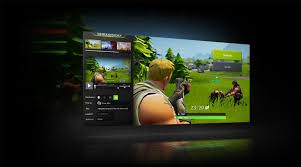
Recording Your Desktop: A Comprehensive Guide
Are you looking for a way to record your desktop activities on Windows or Mac? Look no further! In this article, we will guide you through the best programs to record your desktop, with a focus on ease of use and high-quality video.
Why Record Your Desktop?
There are many reasons why you might want to record your desktop. Maybe you’re trying to create a tutorial for a friend or family member, or perhaps you need to capture a specific sequence of events for troubleshooting purposes. Whatever the reason, recording your desktop can be incredibly useful.
Programs to Record Your Desktop on Windows
Here are some of the best programs to record your desktop on Windows:
- Xbox Game Bar: This is a free program that comes pre-installed with Windows 10 and 11. It allows you to record your gaming sessions, but it can also be used to capture your desktop activities.
- Obs (Open Broadcasting Software): This is a popular program for streaming and recording video games, but it can also be used to record your desktop. It’s free and open-source, making it a great option for those on a budget.
Programs to Record Your Desktop on Mac
If you’re using a Mac, here are some of the best programs to record your desktop:
- Quicktime Player: This is a built-in program that comes with every Mac. It allows you to record your screen and audio, making it a great option for those who need to capture their desktop activities.
- Screenflow: This is a popular program for recording and editing video on the Mac. It’s easy to use and produces high-quality video.
Other Programs to Record Your Desktop
There are many other programs available that can record your desktop, including:
- Camstudio: This is a free program that allows you to record your desktop and add voiceovers.
- Techsmith Camtasia: This is a commercial program that’s popular for creating video tutorials and presentations.
- Screenapp: This is an online service that allows you to record your desktop without installing any software.
How to Use Obs on Windows
If you’re using OBS on Windows, here are the steps to follow:
- Download and install OBS from the official website.
- Launch the program and configure the settings to your liking.
- Add a new scene by clicking the “+” button in the Sources section of the main window.
- Select “Capture Monitor” as the source type and choose the monitor you want to capture.
- Click the “Initiate Recording” button to start recording.
How to Use Quicktime Player on Mac
If you’re using QuickTime Player on a Mac, here are the steps to follow:
- Open QuickTime Player from the Applications folder.
- Go to File > New Screen Recording to launch the screen recorder.
- Select the monitor you want to capture and choose whether or not to include audio.
- Click the “Record” button to start recording.
Conclusion
Recording your desktop can be incredibly useful for a variety of purposes, from creating tutorials to troubleshooting technical issues. Whether you’re using Windows or Mac, there are many programs available that can help you achieve this goal. In this article, we’ve provided an overview of some of the best programs available, as well as step-by-step guides on how to use them.
Frequently Asked Questions
Here are some frequently asked questions about recording your desktop:
- Q: What is The Best Program For Recording my Desktop?
A: The best program for recording your desktop will depend on your specific needs and preferences. - Q: Can I Record my Desktop Without Installing Any Software?
A: Yes, there are several online services available that allow you to record your desktop without installing any software. - Q: How do I Add Audio to my Recorded Video?
A: To add audio to your recorded video, you’ll need to use a program like OBS or Camtasia. - Q: Can I Edit my Recorded Video?
A: Yes, many of the programs mentioned in this article allow you to edit your recorded video before saving it. - Q: Is There a Time Limit on How Long I Can Record my Desktop?
A: Some online services may have a time limit on how long you can record your desktop, but most programs will allow you to record for as long as you need. - Q: Can I Save my Recorded Video in Multiple Formats?
A: Yes, many of the programs mentioned in this article allow you to save your recorded video in multiple formats. - Q: How do I Troubleshoot Issues With Recording my Desktop?
A: If you’re experiencing issues with recording your desktop, try checking the program’s settings or contacting the manufacturer for support. - Q: Can I Use These Programs on a Mac?
A: Yes, many of the programs mentioned in this article are available for both Windows and Mac operating systems.


