
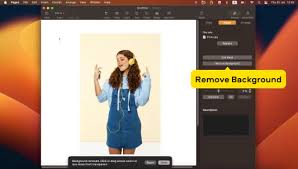
The Ultimate Guide to Removing Backgrounds From Photos
Are you tired of dealing with cluttered or distracting backgrounds in your photos? Look no further! In this comprehensive guide, we’ll walk you through the best programs and online services to remove backgrounds from photos, making it easy to edit and enhance your images.
Introduction
Removing backgrounds from photos can be a daunting task, especially if you’re not familiar with photo editing software. However, with the right tools and techniques, you can easily achieve professional-looking results without breaking the bank. In this article, we’ll explore the top programs and online services to remove backgrounds from photos, covering both free and paid options.
Programs to Remove Backgrounds From Photos (Free)
1. Paint (Windows)
Yes, you read that right! Even the classic Microsoft Paint app can be used to remove backgrounds from photos. With its updated interface and improved features, Paint is now a viable option for simple photo editing tasks.
- To remove the background in Paint, simply open the image, click on the “Select” tool, and choose the “Transparent” option.
- Select the subject by drawing a rectangle around it, and then press “Delete” to remove the background.
2. Gimp (Windows, Macos, Linux)
GIMP is a free and open-source photo editing software that’s packed with features. Its user-friendly interface makes it perfect for beginners, while its advanced tools cater to professionals.
- To remove the background in GIMP, select the “Selection” tool and choose the “Transparent” option.
- Use the “Threshold” or “Colors” selection methods to isolate the subject from the background.
- Once selected, use the “Mask” tool to create a mask around the subject and delete the background.
3. Photopea (Online)
Photopea is an online photo editor that offers a range of tools for removing backgrounds, including AI-powered algorithms.
- To remove the background in Photopea, upload your image, select the “Background Removal” tool, and follow the prompts.
- Adjust the settings as needed to achieve the desired result.
Programs to Remove Backgrounds From Photos (Paid)
1. Adobe Photoshop (Windows, Macos)
Adobe Photoshop is the industry-standard photo editing software that offers a wide range of tools for removing backgrounds.
- To remove the background in Photoshop, select the “Magic Wand” tool and choose the “Background Removal” option.
- Use the “Refine Edge” brush to refine the selection and remove any unwanted areas.
2. Remove.bg (Online)
Remove.Bg is a popular online service that uses AI-powered algorithms to remove backgrounds from photos.
- To remove the background in Remove.Bg, upload your image, select the “Background Removal” tool, and follow the prompts.
- Adjust the settings as needed to achieve the desired result.
Other Online Services For Removing Backgrounds
1. Clipping Magic (Online)
Clipping Magic is an online service that uses AI-powered algorithms to remove backgrounds from photos.
- To remove the background in Clipping Magic, upload your image, select the “Background Removal” tool, and follow the prompts.
- Adjust the settings as needed to achieve the desired result.
2. Erase.bg (Online)
Erase.Bg is an online service that uses AI-powered algorithms to remove backgrounds from photos.
- To remove the background in Erase.Bg, upload your image, select the “Background Removal” tool, and follow the prompts.
- Adjust the settings as needed to achieve the desired result.
Conclusion
Removing backgrounds from photos can be a straightforward process with the right tools and techniques. Whether you’re using free software like Paint or GIMP, or paid options like Photoshop or online services like Remove.Bg, there’s an option for everyone.
By following these steps and experimenting with different tools and techniques, you’ll be able to achieve professional-looking results and enhance your photos with ease.
Frequently Asked Questions
- Q: What is the best program to remove backgrounds from photos?
A: The best program depends on your specific needs and preferences. If you’re a beginner, Paint or GIMP might be good options. For more advanced users, Photoshop or online services like Remove.Bg could be better choices. - Q: How do I remove the background from a photo using Adobe Photoshop?
A: To remove the background in Photoshop, select the “Magic Wand” tool and choose the “Background Removal” option. Use the “Refine Edge” brush to refine the selection and remove any unwanted areas. - Q: What is AI-powered background removal, and how does it work?
A: AI-powered background removal uses artificial intelligence algorithms to detect and remove the background from an image. This process can be more accurate than manual methods but may require some adjustments to achieve the desired result.
Bonus Tip
If you’re struggling to remove a stubborn background or want to try a different approach, consider using online tutorials or seeking help from photo editing experts.
By following these steps and experimenting with different tools and techniques, you’ll be able to achieve professional-looking results and enhance your photos with ease.


