
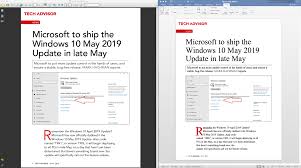
How to Convert Pdf to Word: A Step-by-step Guide
Are you tired of dealing with uneditable PDF files? Do you want to modify the text in a PDF document without having to scan it again? Look no further! In this article, we will guide you through the process of converting PDF to Word using various free programs and online tools.
Introduction
PDF (Portable Document Format) is a widely used file format for sharing and viewing documents. However, when you need to modify the text in a PDF document, it can be challenging to do so without converting it to a word-processing format like Microsoft Word (.Docx). In this article, we will explore different methods to convert PDF to Word using free programs and online tools.
Method 1: Using Doxillion Document Converter (Windows)
Doxillion is a free software that allows you to convert various file formats, including PDF to Word. Here’s how to use it:
- Download and install Doxillion on your Windows computer.
- Open the program and click on “Add files” to select the PDF document you want to convert.
- Choose the output format as .Docx (Microsoft Word).
- Click on the “Convert” button to start the conversion process.
Method 2: Using Microsoft Word (Windows/MacOS)
If you have Microsoft Word installed on your computer, you can use it to convert PDF to Word directly. Here’s how:
- Open Microsoft Word and click on “File” > “Open”.
- Select the PDF document you want to convert.
- Click on “OK” to open the PDF file in Word.
- The PDF file will be converted to a Word document, allowing you to edit the text.
Method 3: Using Libreoffice (Windows/MacOS/Linux)
LibreOffice is a free and open-source office suite that can also convert PDF to Word. Here’s how:
- Download and install LibreOffice on your computer.
- Open LibreOffice and click on “File” > “Open”.
- Select the PDF document you want to convert.
- Click on “OK” to open the PDF file in LibreOffice.
- The PDF file will be converted to a Word document, allowing you to edit the text.
Method 4: Using Online Tools (iLovePDF, Cloudconvert, Google Documents)
There are also several online tools that can convert PDF to Word without requiring any software installation. Here’s how:
- Ilovepdf: Go to iLovePDF.Com and click on “PDF to Word” tool.
- Cloudconvert: Visit CloudConvert.Com and select the “PDF to Word” conversion option.
- Google Documents: Open Google Drive, create a new document, and upload your PDF file. Then, open the PDF file in Google Docs and edit the text.
Method 5: Using Ocr (Optical Character Recognition) Tools
If you have a scanned PDF document with images that contain text, you can use OCR tools to convert it to editable text. Here’s how:
- Use online OCR tools like Free Online OCR or iLovePDF.
- Select the PDF file and choose the output format as .Docx (Microsoft Word).
- Click on the “Convert” button to start the conversion process.
Conclusion
Converting PDF to Word is a straightforward process that can be achieved using various free programs and online tools. By following these steps, you can edit the text in a PDF document without having to scan it again. Whether you use Doxillion, Microsoft Word, LibreOffice, iLovePDF, CloudConvert, or Google Documents, the process remains relatively simple.
Frequently Asked Questions (FAQs)
- What is The Best Method For Converting Pdf to Word?
The best method depends on your specific needs and preferences. If you have a scanned PDF document with images that contain text, using OCR tools might be the most suitable option. - Do I Need to Install Software to Convert Pdf to Word?
No, you can use online tools like iLovePDF, CloudConvert, or Google Documents without installing any software. - Can I Edit The Converted File in Microsoft Word?
Yes, the converted file will be editable in Microsoft Word, allowing you to make changes as needed. - What is Ocr (Optical Character Recognition)?
OCR is a technology that recognizes and extracts text from images or scanned documents. - Are These Methods Free?
Yes, most of the methods mentioned are free, although some online tools may have limitations or require subscription-based services for advanced features.
Important Notes
- Always check the compatibility of the output format with your desired software application (e.G., Microsoft Word).
- Be aware that some online tools might have limitations on file size or conversion speed.
- If you’re working with a scanned PDF document, consider using OCR tools to ensure accurate text recognition and editing.


