
The Ultimate Guide to Uninstalling Programs: Tips And Tricks
Are you tired of cluttered computer systems? Do you have a pile of programs that you no longer need, but don’t know how to get rid of them? Look no further! In this article, we’ll explore the best ways to uninstall programs on Windows and macOS, using various tools and techniques.
What You Need to Know
Before we dive into the nitty-gritty, it’s essential to understand that uninstalling a program can be as simple as deleting a file or as complex as removing residual files. In this article, we’ll cover both scenarios, providing you with the knowledge to tackle any uninstallation task.
Uninstalling Programs on Windows
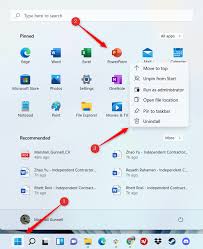
Windows 10 and Windows 11 come equipped with built-in features to make uninstalling programs a breeze. Here’s how:
- Using The Settings App: Open the Start menu, click on the gear icon (Settings), and select “Apps” from the menu. From there, you can browse through your installed applications, find the one you want to remove, and click the three dots next to it. Select “Uninstall” and confirm.
- Using The Control Panel: Open the Control Panel, go to “Programs and Features,” and select the program you want to uninstall. Click “Uninstall” and follow the prompts.
Revo Uninstaller
If you’re having trouble using the built-in features or need more control over the uninstallation process, consider using Revo Uninstaller. This powerful tool allows you to:
- Remove Residual Files: Even after a program is uninstalled, its files might still be present on your system. Revo Uninstaller helps you delete these leftovers.
- Scan For Registry Entries: The program scans your registry for any remaining entries related to the application and deletes them.
Uninstalling Programs on Macos
MacOS also offers built-in features to help with uninstallation:
- Using Launchpad: Hold down the Command key while clicking on an app icon in Launchpad, then click the “X” icon. Select “Remove” from the menu.
- Using Finder: Drag the app icon to the Trash and empty it.
Appcleaner
To ensure a complete uninstallation experience, consider using AppCleaner:
- Find Related Files: The program scans your system for any files associated with the application and deletes them.
- Remove Unnecessary Files: You can choose which files to keep or delete, ensuring that only essential items remain.
Uninstalling Antivirus Programs
When dealing with antivirus software, it’s crucial to use specialized tools to avoid conflicts:
- Official Uninstallers: Look for official uninstaller software provided by the antivirus company.
- Third-party Uninstallers: If you can’t find an official uninstaller, consider using a reputable third-party tool.
Uninstalling Graphics Card Drivers
When upgrading your graphics card, it’s essential to remove the old drivers before installing new ones:
- Using Built-in Tools: Windows and macOS have built-in tools for updating and removing graphics card drivers.
- Third-party Tools: If you’re experiencing issues, consider using a third-party tool specifically designed for this task.
Conclusion
Uninstalling programs might seem daunting at first, but with the right tools and techniques, it becomes a straightforward process. By following these guidelines, you’ll be able to:
- Remove unnecessary applications
- Clean up your system
- Improve performance
Whether you’re using Windows or macOS, there’s an uninstallation method tailored to your needs.
Frequently Asked Questions
Q: What is the best way to uninstall programs on my computer?
A: The best way to uninstall programs depends on the operating system and the type of program. For Windows users, built-in features like Settings App and Control Panel are usually sufficient. MacOS users can use Launchpad or Finder.
Q: How do I remove residual files after uninstalling a program?
A: Revo Uninstaller is a powerful tool that helps you delete leftover files and registry entries related to the application.
Q: Can I use third-party tools to uninstall programs on my computer?
A: Yes, reputable third-party tools like Revo Uninstaller can be used in conjunction with built-in features or as an alternative when needed.
Q: How do I remove antivirus software from my system?
A: Official uninstaller software provided by the antivirus company is usually the best option. If not available, consider using a trusted third-party tool.
Q: Can I upgrade my graphics card without removing old drivers first?
A: It’s essential to remove the old drivers before installing new ones to avoid conflicts and ensure proper functionality.
Q: What are some tips for maintaining a clutter-free computer system?
A: Regularly uninstall unused programs, clean up residual files, and update your operating system to maintain optimal performance.


