
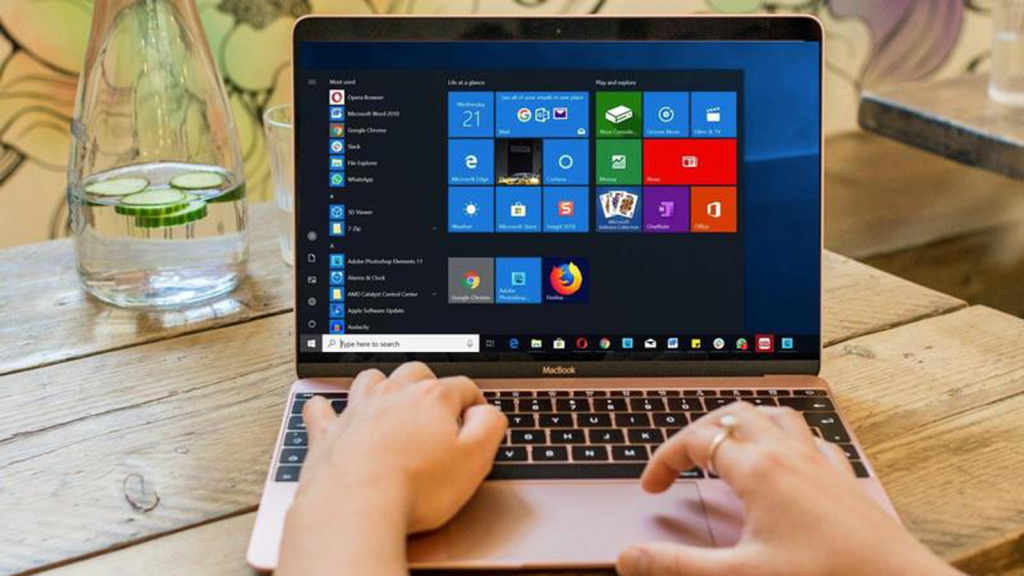
How to Run Windows on Mac: A Step-by-step Guide
Are you a Mac user who wants to run Windows on your device? Look no further! In this article, we will explore the best programs to use Windows on Mac, including Parallels Desktop, VirtualBox, and VMware Fusion.
Why Run Windows on Mac?
There are several reasons why you might want to run Windows on your Mac. Perhaps you have a favorite game or application that is only available for Windows. Maybe you need to use a specific software tool that is only compatible with Windows. Whatever the reason, running Windows on Mac can be a great solution.
Preliminary Operations
Before we dive into the best programs to run Windows on Mac, there are some preliminary operations that you should know about. First and foremost, you will need to create a virtual machine. This involves downloading an image of the operating system (in this case, Windows) and installing it in a virtual environment.
There are two ways to create a virtual machine: You can either download the ISO file directly from Microsoft’s website or use a software program that simplifies the process for you.
Parallels Desktop
The first program we will explore is Parallels Desktop. This is a powerful and user-friendly software that allows you to run Windows on your Mac with ease.
To get started, you can download the free trial version of Parallels Desktop from their official website. Once installed, you can create a new virtual machine by clicking on the “+” button in the top left corner of the window.
From there, select “Windows” as the operating system and choose the version you want to install (e.G., Windows 11). The software will then download the necessary files and install the operating system in a virtual environment.
Virtualbox
Another popular program for running Windows on Mac is VirtualBox. This free and open-source software allows you to create and run virtual machines with ease.
To get started, download the VirtualBox software from their official website and follow the installation instructions. Once installed, launch the application and click on “New” in the top left corner of the window.
From there, select “Windows” as the operating system and choose the version you want to install (e.G., Windows 10). The software will then create a new virtual machine and allow you to install the operating system.
Vmware Fusion
A third option for running Windows on Mac is VMware Fusion. This commercial software offers advanced features and support for running multiple virtual machines at once.
To get started, download the free trial version of VMware Fusion from their official website. Once installed, launch the application and click on “New” in the top left corner of the window.
From there, select “Windows” as the operating system and choose the version you want to install (e.G., Windows 11). The software will then create a new virtual machine and allow you to install the operating system.
Other Programs
In addition to Parallels Desktop, VirtualBox, and VMware Fusion, there are several other programs that can be used to run Windows on Mac. Some of these include:
- Boot Camp: A built-in software program in Macs that allows users to create a partition on their hard drive for running Windows.
- Wineskin: A free and open-source software program that allows users to run Windows applications on Mac without creating a virtual machine.
- Crossover: A commercial software program that allows users to run Windows applications on Mac with ease.
Conclusion
Running Windows on Mac can be a great solution for those who need to use specific software tools or games that are only available for Windows. With programs like Parallels Desktop, VirtualBox, and VMware Fusion, it’s easier than ever to get started.
Remember to follow the preliminary operations outlined above and choose the program that best suits your needs. Happy computing!
Frequently Asked Questions
Q: What is the best program to run Windows on Mac?
A: The best program for running Windows on Mac depends on your specific needs and preferences. Parallels Desktop, VirtualBox, and VMware Fusion are all popular options.
Q: How do I create a virtual machine on my Mac?
A: To create a virtual machine on your Mac, you can use software programs like Parallels Desktop, VirtualBox, or VMware Fusion.
Q: Can I run Windows on my MacBook with chip Apple Silicon (M1 or M2)?
A: Yes, but you will need to use a specific version of the operating system that is optimized for Apple Silicon. You can download the ISO file directly from Microsoft’s website and install it in a virtual environment using software like Parallels Desktop.
Q: How do I suspend or turn off my virtual machine?
A: To suspend your virtual machine, click on the red circle in the top left corner of the window. To turn off your virtual machine, click on the shutdown button.
Q: Can I import an existing virtual machine into VirtualBox?
A: Yes, you can import an existing virtual machine into VirtualBox by selecting “VirtualMachine” from the menu and choosing “Import”.
Q: What is the difference between Boot Camp and Parallels Desktop?
A: Boot Camp is a built-in software program in Macs that allows users to create a partition on their hard drive for running Windows. Parallels Desktop, on the other hand, is a commercial software program that allows users to run multiple virtual machines at once.
Q: Is Wineskin compatible with the latest versions of macOS?
A: No, Wineskin is not compatible with the latest versions of macOS.
Q: Can I run multiple operating systems simultaneously using Parallels Desktop or VirtualBox?
A: Yes, both Parallels Desktop and VirtualBox allow users to run multiple virtual machines at once.


