
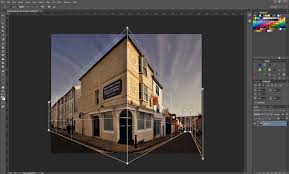
The Ultimate Guide to Deforming Photos: Top Programs And Apps
Are you looking to add some fun and creativity to your photos? Deformaring a photo can be a great way to express yourself and make memories even more special. In this article, we’ll explore the top programs and apps for deforming photos, making it easy for you to get started.
The Best Programs For Deforming Photos
- Adobe Photoshop: The industry standard for photo editing, Adobe Photoshop is a powerful tool that offers a wide range of features, including deformation tools.
- Gimp: A free and open-source alternative to Photoshop, GIMP is a great option for those who want to deform photos without breaking the bank.
- Photopea: An online editor that’s similar to Photoshop, Photopea is a great option for those who want to access advanced photo editing features from anywhere.
The Top Apps For Deforming Photos
- Snapseed: A free app developed by Google, Snapseed offers a range of tools, including deformation options.
- Modify Photo — Photo Editor: An app that allows you to modify almost any aspect of a photo, Modify Photo is a great option for those who want to get creative.
- Adobe Photoshop (iPadOS): A mobile version of the popular desktop app, Adobe Photoshop is a great option for those who want to deform photos on-the-go.
How to Use Adobe Photoshop
If you’re looking to deform a photo using Adobe Photoshop, here’s a step-by-step guide:
- Open Photoshop: Download and install Adobe Photoshop on your computer.
- Import Your Photo: Open the program and select “File” > “Open” to import your photo.
- Access Deformation Tools: Go to the menu bar and select “Filter” > “Distortions” to access deformation tools, including Fluidifica.
- Deform Your Photo: Use the fluidification tool to deform your photo by dragging the mouse in different directions.
How to Use Gimp
If you’re looking to deform a photo using GIMP, here’s a step-by-step guide:
- Open Gimp: Download and install GIMP on your computer.
- Import Your Photo: Open the program and select “File” > “Open” to import your photo.
- Access Deformation Tools: Go to the menu bar and select “Filters” > “Distortions” to access deformation tools, including transformation warp.
- Deform Your Photo: Use the transformation warp tool to deform your photo by dragging the mouse in different directions.
How to Use Photopea
If you’re looking to deform a photo using Photopea, here’s a step-by-step guide:
- Open Photopea: Access the online editor by visiting the website.
- Import Your Photo: Select “File” > “Open” to import your photo.
- Access Deformation Tools: Go to the menu bar and select “Filter” > “Distortions” to access deformation tools, including fluidification.
- Deform Your Photo: Use the fluidification tool to deform your photo by dragging the mouse in different directions.
Conclusion
Deforming photos can be a fun and creative way to express yourself and make memories even more special. With these top programs and apps for deforming photos, you’ll have everything you need to get started. Whether you’re looking to access advanced features like Adobe Photoshop or want to use a free app like Snapseed, there’s something for everyone.
Frequently Asked Questions
- What is Deformation in Photography?
Deformation in photography refers to the process of altering a photo by changing its shape, size, and perspective. - Which Program is Best For Deforming Photos?
Adobe Photoshop and GIMP are top programs for deforming photos, with Photopea being a great online alternative. - Can I Deform Photos on my Smartphone?
Yes, there are several apps available that allow you to deform photos on your smartphone, including Snapseed and Modify Photo — Photo Editor. - How do I Access Deformation Tools in Adobe Photoshop?
To access deformation tools in Adobe Photoshop, go to the menu bar and select “Filter” > “Distortions.” - Can I Use Gimp For Free?
Yes, GIMP is a free and open-source program that can be downloaded from its official website. - How do I Import my Photo Into Photopea?
To import your photo into Photopea, select “File” > “Open” to access the editor. - Can I Deform Photos Online?
Yes, there are several online editors available that allow you to deform photos, including Photopea and Snapseed. - What is The Difference Between Deformation And Retouching?
Deformation refers to the process of altering a photo by changing its shape, size, and perspective, while retouching refers to the process of removing blemishes and imperfections from a photo.


