
The Ultimate Guide to Watching Free Movies on Your PC
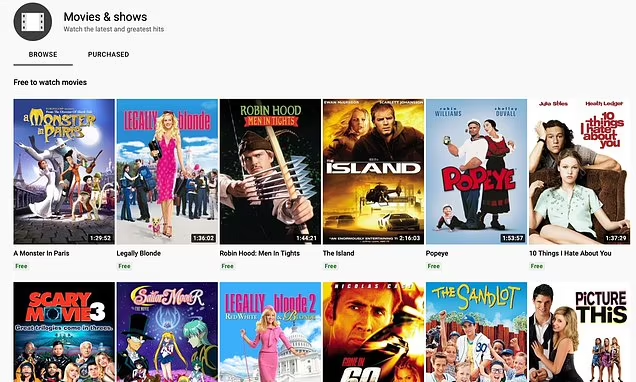
Are you tired of paying for movie streaming services or browsing through the internet to find free movies? Look no further! In this article, we will explore the best ways to watch free movies on your PC.
Solutions Pre-defined
Before diving into the world of third-party programs, it’s essential to know that some operating systems come with pre-defined solutions for watching videos. On Windows 10 and later (including Windows 11), you can use the “Film and TV” application to watch downloaded movies. This program not only allows you to play video files but also enables you to rent or purchase new movies.
To access this feature, click on the Start button and search for “film.” Click on the top result to open the application. Then, go to the “Personal” tab and select “Folders Video” from the menu. If you want to add a new folder to the application, click on the “+” button next to “Add folders.”
Vlc: The Best Free Media Player
If you’re looking for a versatile media player that can play various video formats, VLC is an excellent choice. This open-source software supports playback of almost any type of file and can be downloaded for Windows, macOS, and Linux.
To install VLC, go to the official website and follow the instructions. Once installed, you can use it to watch movies by clicking on “Media” > “Open File” or by double-clicking on a video file. If VLC doesn’t recognize your movie, try right-clicking on the file and selecting “Open with” > “VLC.”
Kodi: A Feature-rich Media Center
For those who want to turn their PC into a full-fledged media center, Kodi is an excellent option. This program allows you to stream movies from various sources, including online platforms and local storage.
To install Kodi on Windows or macOS, download the application from the Microsoft Store or Mac App Store, respectively. Once installed, launch the program and follow the prompts to set it up. You can add a new video source by clicking on “Files” > “Add Video Source,” then select the folder containing your movie files.
Other Programs For Watching Free Movies
If you’re not satisfied with the above options or need more features, here are some other programs worth considering:
- Mpv: A lightweight media player that can play various video formats without requiring external codecs.
- Iina: A free and open-source media player based on the mpv blueprint, supporting picture-in-picture mode and other advanced features.
- Kmplayer: A program for playing movies that doesn’t require external codecs, with support for 8K resolution and up to 60 frames per second.
Streaming Services
If you’re looking for a convenient way to watch free movies online, consider the following streaming services:
- Netflix: Accessible on Windows and macOS through a dedicated application, which also allows offline downloads.
- Amazon Prime Video: Available on Windows and macOS with a comfortable interface, enabling offline downloads of content.
- Disney+: Offers a user-friendly app for Windows 10/11, allowing users to stream movies and TV shows.
Conclusion
Watching free movies on your PC is now easier than ever, thanks to the various programs and streaming services available. Whether you prefer pre-defined solutions or third-party apps, there’s something for everyone. Don’t miss out on this opportunity to explore the world of free movie watching – start exploring today!
Frequently Asked Questions
Q: What are some alternatives to VLC for playing movies?
A: Some alternatives include mpv, IINA, and KMPlayer.
Q: Can I watch movies online without paying a subscription fee?
A: Yes, services like Netflix, Amazon Prime Video, and Disney+ offer free trials or ad-supported options.
Q: Are there any programs that allow me to download movies for offline viewing?
A: Yes, applications like Kodi and VLC support local video playback.


