
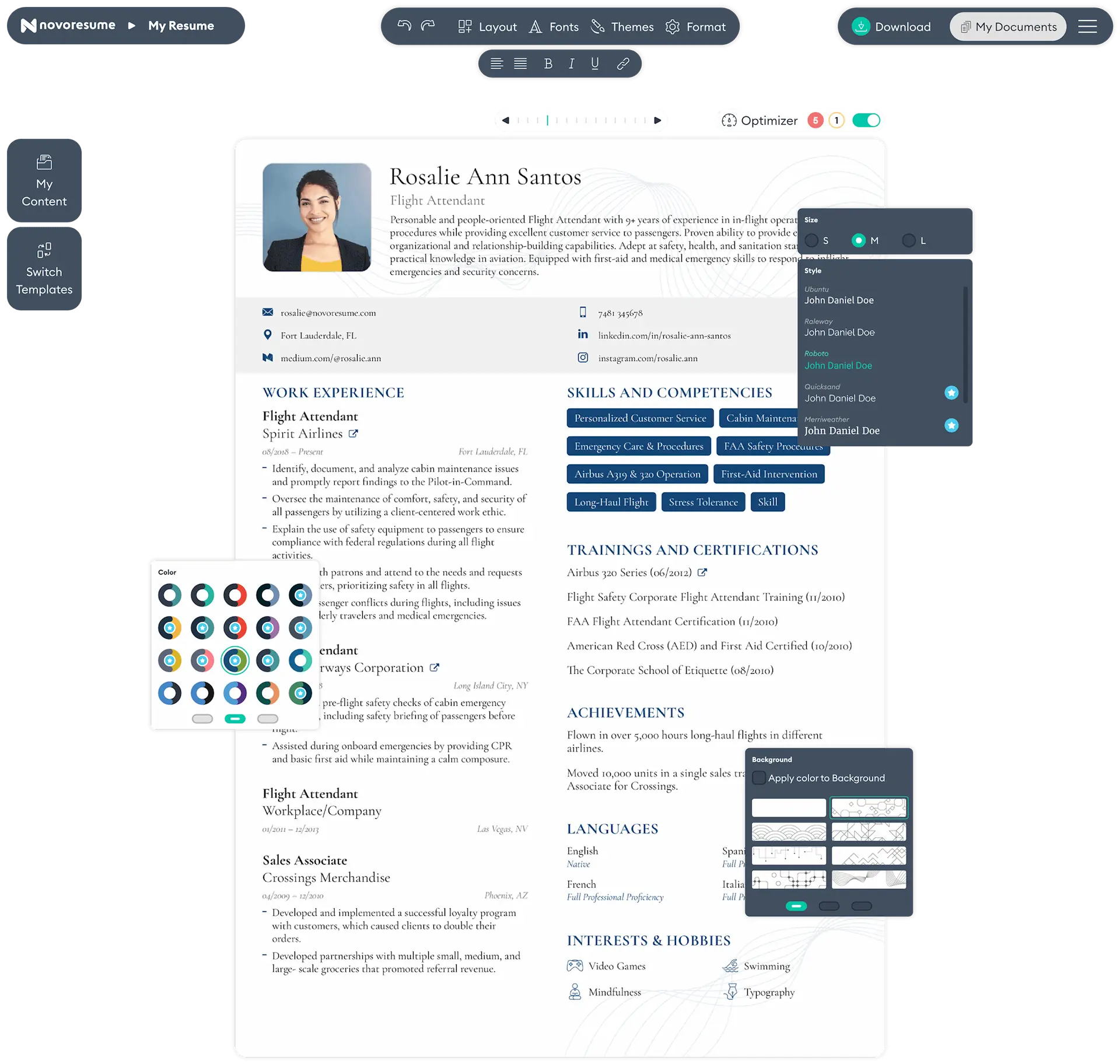
The Ultimate Guide to Creating a Killer Resume With Mobile Apps
Are you tired of spending hours crafting the perfect resume, only to have it get lost in the sea of applicants? Well, worry no more! With the advent of mobile apps, creating a stunning resume has never been easier. In this article, we’ll explore the best mobile apps for crafting a killer resume that will make you stand out from the competition.
Why Use Mobile Apps to Create a Resume?
In today’s digital age, having a professional-looking resume is essential for landing your dream job. However, finding the time and resources to create one can be daunting. That’s where mobile apps come in – they provide a convenient and user-friendly way to create a stunning resume that will make you stand out from the crowd.
The Best Mobile Apps For Creating a Resume
- Canva (Android/iOS/iPadOS)
Canva is the ultimate graphic design app for non-designers. With thousands of free templates, this app allows you to create stunning resumes in minutes. From volunteering to work experience, Canva’s drag-and-drop editor makes it easy to customize your resume to perfection.
How to Use Canva to Create a Resume
To use Canva to create a resume:
- Download the app from the App Store or Google Play
- Choose a template or start from scratch
- Customize your resume with photos, fonts, and colors
-
Export your resume as a PDF or JPG
-
Curriculum Vitae (Android)
This app is specifically designed for creating resumes in European format. With a vast library of templates, you can easily create a professional-looking resume that will impress potential employers.
How to Use Curriculum Vitae to Create a Resume
To use Curriculum Vitae to create a resume:
- Download the app from the Google Play Store
- Choose a template or start from scratch
- Customize your resume with photos and details
-
Export your resume as a PDF
-
Cvpop (Android/iOS/iPadOS/MacOS/visionOS)
This app is a game-changer for creating resumes on-the-go. With a user-friendly interface, you can easily create a stunning resume that will make you stand out from the competition.
How to Use Cvpop to Create a Resume
To use CVpop to create a resume:
- Download the app from the App Store or Google Play
- Choose a template or start from scratch
- Customize your resume with photos and details
- Export your resume as a PDF or JPG
Other Mobile Apps For Creating Resumes
- Curriculum Vitae (Android) – A simple app for creating resumes in European format.
- CV App (Android/iOS/iPadOS) – A minimalistic app for creating stunning resumes on-the-go.
- Linkedin (Android/iOS/iPadOS) – A social network where you can create a detailed profile and resume.
Conclusion
Creating a killer resume has never been easier with the advent of mobile apps. Whether you’re a student, entrepreneur, or job seeker, these apps provide a convenient and user-friendly way to craft a stunning resume that will make you stand out from the competition. So why wait? Download one of these apps today and start creating your dream resume!
Frequently Asked Questions
-
Q: Which Mobile App is Best For Creating a Resume?
A: Canva, Curriculum Vitae, CVpop, or LinkedIn are all great options depending on your needs. -
Q: How do I Create a Resume Using a Mobile App?
A: Simply download the app, choose a template, customize your details, and export your resume as a PDF or JPG. -
Q: Can I Use Multiple Mobile Apps to Create my Resume?
A: Yes! You can use different apps for various parts of your resume, such as formatting, design, and editing. -
Q: How do I Save my Resume Created Using a Mobile App?
A: Export your resume as a PDF or JPG file to save it on your device or cloud storage service. -
Q: Can I Use a Mobile App to Create a European-style Resume?
A: Yes! Curriculum Vitae and CVpop are specifically designed for creating resumes in European format. -
Q: How do I Edit my Resume Created Using a Mobile App?
A: Simply go back to the app, make any necessary changes, and export your updated resume as a PDF or JPG. -
Q: Can I Share my Resume Created Using a Mobile App With Others?
A: Yes! You can easily share your resume by exporting it as a PDF or JPG file and sending it via email or messaging apps. -
Q: How do I Ensure my Resume is Professional-looking When Created Using a Mobile App?
A: Choose a high-quality template, customize your details carefully, and proofread your resume multiple times to catch any errors!


