
Samsung Driver: The Ultimate Guide
Are you struggling to update your Samsung smartphone or tablet to the latest version of Android? Or perhaps, you’re trying to transfer files from your device to your PC but encountering issues with recognition? You’re not alone! Many users face this problem, but fear not, for we have the solution. In this article, we will guide you through the process of downloading and installing Samsung drivers, so you can seamlessly connect your devices.
Why Do I Need a Samsung Driver?
Before we dive into the details, let’s understand why a Samsung driver is necessary. When you try to connect your Samsung device to your PC using a USB cable, Windows may not recognize it. This is because the operating system needs to install the correct drivers to communicate with your device. A Samsung driver is a software component that enables your computer to interact with your mobile device or other Samsung-branded devices.
Smart Switch: The Official Software
One of the most popular and user-friendly solutions is Smart Switch, an official software developed by Samsung. This tool allows you to switch between devices, transfer files, and update your Android version without any hassle. With Smart Switch, you can easily manage your device’s content on your computer.
How to Download Smart Switch:
To get started with Smart Switch:
- Visit the Samsung website (www.Samsung.Com) and navigate to the Smart Switch page.
- Click on the “Download” button for Windows or macOS, depending on your operating system.
- Follow the installation instructions on the screen.
Installing Smart Switch:
For Windows:
- Open the downloaded setup file (Smart.Switch.PC_setup.Exe).
- In the window that opens, click on the “Yes” button.
- Accept the terms of the license agreement and click on “Next.”
- Follow the prompts to complete the installation process.
For macOS:
- Open the downloaded setup file (SmartSwitch4Mac_setup.Dmg).
- In the window that opens, click on the “Consent” button.
- Click on “Continue” for two consecutive times, then select “Accept” and “Install.”
- Enter your administrator password to complete the installation process.
Using Smart Switch:
Once installed, launch Smart Switch and follow these steps:
- Connect your Samsung device to your PC using a USB cable.
- Launch Smart Switch on your computer.
- Select the option to connect your device to your PC.
- Follow the prompts to manage your device’s content.
Kies: An Alternative Solution
If you’re looking for another solution, Kies is an application developed by Samsung that allows you to manage your mobile device’s content on your computer. This tool can be downloaded from the official Samsung website.
Samsung Driver Usb: For Mobile Phones Only
If you want to connect your Samsung mobile phone to your PC without installing Smart Switch or Kies, you can use the Samsung Driver USB software. This driver is designed specifically for mobile phones and contains only the necessary components for recognition.
How to Download Samsung Driver Usb:
- Visit the Samsung website (www.Samsung.Com) and navigate to the Samsung Driver USB page.
- Click on the “Download” button for Windows (SAMSUNG_USB_Driver_for_Mobile_Phones.Exe).
- Follow the installation instructions on the screen.
Installing Samsung Driver Usb:
- Open the downloaded setup file (.*Exe).
- In the window that opens, click on the “Yes” button.
- Select Italy as your country and language in the next menu.
- Click on “Next,” then select “Install” to complete the installation process.
Accessing Your Samsung Device’s Content:
After installing the Samsung Driver USB, you should be able to access your device’s content directly from Windows Explorer (the yellow folder icon).
Samsung Printer Drivers: A Separate Solution
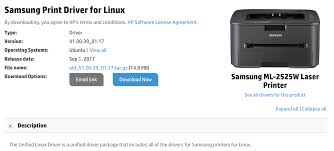
If you’re looking for software configuration for Samsung printers or scanners, you’ll need to visit the official HP website. This is because Samsung-branded printers come with HP drivers.
Conclusion:
In conclusion, downloading and installing a Samsung driver can resolve issues with recognizing your device on your PC. Whether you choose Smart Switch, Kies, or the Samsung Driver USB software, our guide has provided you with the necessary steps to get started. Remember to visit the official websites for each solution to ensure you’re using the latest versions.


