
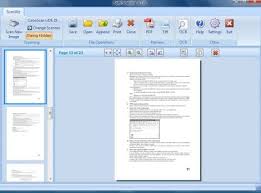
The Ultimate Guide to Scanning Programs
Are you tired of using outdated scanning methods? Look no further! In this article, we’ll explore the best programs for scanning documents and photos on Windows and Mac.
Why Use a Scanning Program?
Scanning programs are essential tools for anyone who needs to digitize physical documents or photos. They allow you to create high-quality digital copies of your important papers, saving you time and space in the long run. Whether you’re a student, business owner, or simply someone who likes to keep their belongings organized, a scanning program is a must-have.
Windows Scanning Programs
If you’re using Windows 10 or 11, you have access to a built-in scanning program called Fax and Scan. This program allows you to scan documents quickly and easily, saving them in popular formats like PDF and JPEG. However, if you need more advanced features, such as OCR (Optical Character Recognition) capabilities, there are other options available.
Naps2: A Free Scanning Program For Windows
One of the most popular scanning programs for Windows is NAPS2. This free program offers a range of features, including OCR capabilities and support for multiple document formats. With NAPS2, you can scan documents with ease, using a variety of settings to customize your scans.
Other Windows Scanning Programs
In addition to Fax and Scan and NAPS2, there are several other scanning programs available for Windows. Some popular options include:
- Scan: A simple program that allows you to scan documents quickly and easily.
- Freeocr: A free program that uses OCR technology to digitize your documents.
- Software From Printer Manufacturers: Many printer manufacturers offer proprietary scanning software that can be downloaded from their websites.
Mac Scanning Programs
If you’re using a Mac, there are several scanning programs available to you. One of the most popular options is Acquisition Image, which comes built-in with macOS. This program allows you to scan documents quickly and easily, saving them in popular formats like PDF and JPEG.
Prizmo: A Advanced Scanning Program For Mac
If you need more advanced features from your scanning program, consider using Prizmo. This paid program offers a range of features, including OCR capabilities and support for multiple document formats. With Prizmo, you can scan documents with ease, using a variety of settings to customize your scans.
Mobile Scanning Programs
In addition to desktop scanning programs, there are also several mobile apps available that allow you to scan documents on the go. Some popular options include:
- Genius Scan: A free app that allows you to scan documents using your smartphone or tablet.
- Microsoft Lens: A free app that uses OCR technology to digitize your documents.
- Google Photo Scan: A free app that allows you to scan photographs and save them in the cloud.
Conclusion
In conclusion, there are many scanning programs available for Windows and Mac. Whether you need a simple program or something more advanced, there’s an option out there for you. Remember to consider your specific needs when choosing a scanning program, and don’t be afraid to try out different options before settling on the one that works best for you.
Frequently Asked Questions
- What is The Best Scanning Program For Windows?
- The best scanning program for Windows depends on your specific needs. For simple scanning tasks, Fax and Scan or Scan are good options. For more advanced features, consider using NAPS2.
- Can I Use a Scanning Program to Digitize Old Photos?
- Yes! Many scanning programs allow you to scan and digitize old photographs. Consider using Prizmo or Google Photo Scan for this task.
- How do I Choose The Right Scanning Program For my Needs?
- Consider your specific needs when choosing a scanning program. Think about the types of documents you need to scan, the level of customization you require, and any advanced features you might need.
- Are There Any Free Scanning Programs Available?
- Yes! Many scanning programs are free or offer free versions. Consider using FreeOCR or NAPS2 for simple scanning tasks.
- Can I Use a Mobile App to Scan Documents on The Go?
- Yes! There are many mobile apps available that allow you to scan documents on the go, such as Genius Scan or Microsoft Lens.
- How do I Customize my Scans With a Scanning Program?
- Most scanning programs offer customization options for your scans. Consider using settings like resolution, color depth, and document size to tailor your scans to your needs.
- Can I Use a Scanning Program to Convert Documents to Pdf?
- Yes! Many scanning programs allow you to save your scanned documents in PDF format. Consider using NAPS2 or Prizmo for this task.
Important: Remember to always follow the instructions provided by the manufacturer when installing and using any scanning program.


