
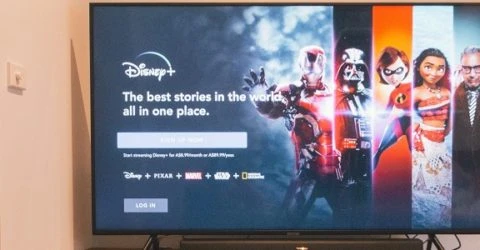
Smart Tv: The Ultimate Guide
Are you fascinated by the smart TV’s capabilities? Do you want to acquire one, but are hesitant due to some doubts about its utility? No need to worry! In this article, we’ll delve into the world of smart TVs and explore their features, benefits, and how they work.
What is a Smart Tv?
A smart TV is a television that can connect to the internet, allowing you to access various apps, streaming services, and online content. Unlike traditional TVs, which only display broadcasted channels, smart TVs offer a wider range of functionalities, making them an exciting addition to any home entertainment system.
How Does a Smart TV Work?
Smart TVs use various technologies to connect to the internet, including Wi-Fi, Ethernet cables, or even Powerline devices. Once connected, you can access a wide range of apps, such as Netflix, YouTube, and social media platforms, using your TV’s remote control or a separate device like a smartphone or tablet.
Types of Smart Tvs
There are several types of smart TVs available in the market, each with its own set of features and operating systems. Some popular options include:
- Android TV: A smart TV platform developed by Google, which allows you to install apps, access streaming services, and control your TV using voice commands.
- Samsung Smart Hub: A smart TV platform developed by Samsung, which offers a wide range of apps, including streaming services, social media platforms, and more.
- LG Webos: A smart TV platform developed by LG, which offers a user-friendly interface, access to various apps, and seamless connectivity with other devices.
How to Choose The Right Smart TV
When selecting a smart TV, consider the following factors:
- Dimensions And Resolution: Ensure the TV’s dimensions fit your room’s space, and choose a resolution that suits your viewing preferences (e.G., HD Ready, Full HD, or Ultra HD).
- Type of Panel: Consider the type of panel, such as OLED, LCD, or LED, which can affect picture quality and energy consumption.
- Connectivity: Choose a TV with suitable connectivity options, including Wi-Fi, Ethernet, or Powerline devices.
Other Important Features
In addition to the above factors, consider the following features when selecting a smart TV:
- Slot Ci+: Ensure the TV has a Slot CI+ interface for connecting digital antennas and accessing premium services.
- Hdr: Consider a TV with HDR support for enhanced picture quality.
- Inputs: Verify the TV has sufficient HDMI inputs to connect multiple devices, such as Blu-ray players or gaming consoles.
How to Use a Smart TV
Using a smart TV is relatively straightforward. Here’s a step-by-step guide:
- Connect your TV to the internet using Wi-Fi or Ethernet.
- Access the TV’s menu and select the settings icon.
- Choose the “Internet” option and select the Wi-Fi network you want to connect to.
- Enter your password and wait for the connection to be established.
- Once connected, access the TV’s app store and download your desired apps.
Using a Smart TV Without Wi-fi
If your smart TV doesn’t have Wi-Fi capabilities or you’re in an area with poor internet connectivity, don’t worry! You can still use your TV by connecting it to a separate device using Ethernet cables or Powerline devices. However, be aware that some features, such as app installation and online content access, may not function.
Accessing The Internet on a Smart TV
Once connected to the internet, you can access various online services, including:
- Streaming Platforms: Watch your favorite shows and movies on Netflix, YouTube, and other streaming services.
- Social Media: Stay connected with friends and family using social media apps like Facebook and Twitter.
- Online Shopping: Browse and purchase products from online stores like Amazon.
Installing Apps on a Smart TV
To install apps on your smart TV, follow these steps:
- Access the TV’s app store.
- Search for the desired app (e.G., Netflix or YouTube).
- Select the app and click “Install” to download and install it.
- Once installed, access the app by selecting its icon from the TV’s home screen.
Using Iptv on a Smart TV
IPTV allows you to watch live TV channels using an internet connection. To use IPTV on your smart TV:
- Install an IPTV client app on your TV.
- Configure the app according to the provider’s instructions.
- Start watching your favorite live TV channels.
Accessing Files on a Smart TV
To access files stored on a network-attached storage (NAS) device or a computer, follow these steps:
- Ensure you have configured a DLNA server on your NAS device or computer.
- Access the TV’s menu and select the “Sources” option.
- Choose the icon representing your NAS device or computer.
- Browse through the list of available files and select the one you want to play.
Which Smart TV Should You Buy?
With so many options available, choosing the right smart TV can be overwhelming. Consider factors like price, features, and brand reputation when making your decision.
Transforming Your TV Into a Smart TV
If you don’t want to buy a new smart TV but still want to access smart features, consider using devices like Chromecast, Apple TV, or a TV Box. These devices can transform your existing TV into a smart TV without breaking the bank!
In conclusion, smart TVs offer an exciting range of features and functionalities that enhance your viewing experience. By understanding how they work, what to look for when choosing one, and how to use them effectively, you’ll be well on your way to enjoying the best of television with the latest smart technology.
Frequently Asked Questions (FAQs)
Q: What is a Smart TV?
A: A smart TV is a television that can connect to the internet, allowing access to various apps, streaming services, and online content.
Q: How do I choose the right Smart TV?
A: Consider factors like dimensions, resolution, type of panel, connectivity options, Slot CI+, HDR support, inputs, and brand reputation when selecting a smart TV.
Q: Can I use a Smart TV without Wi-Fi?
A: Yes, you can still use your TV by connecting it to a separate device using Ethernet cables or Powerline devices. However, some features may not function.
Q: How do I access the internet on a Smart TV?
A: Access various online services like streaming platforms, social media, and online shopping once connected to the internet.
Q: Can I install apps on a Smart TV?
A: Yes, you can install apps by accessing the TV’s app store, searching for the desired app, selecting it, and clicking “Install” to download and install it.
Q: What is IPTV, and how do I use it on a Smart TV?
A: IPTV allows you to watch live TV channels using an internet connection. Install an IPTV client app, configure it according to the provider’s instructions, and start watching your favorite live TV channels.
Q: Can I access files on a Smart TV?
A: Yes, you can access files stored on a network-attached storage (NAS) device or a computer by configuring a DLNA server, accessing the TV’s menu, selecting the “Sources” option, and choosing the icon representing your NAS device or computer.


