
Here’s the revised version of the article with proper headings:
How to Make Utorrent Faster: A Step-by-step Guide
Are you tired of waiting for files to download on uTorrent? Do you want to know the secrets to making uTorrent faster? Look no further! In this article, we will guide you through a step-by-step process to optimize your uTorrent settings and make it run like a charm.
Why Is My Utorrent So Slow?
Before we dive into the solution, let’s first understand why uTorrent might be slow in the first place. There are several reasons that could contribute to this issue:
- Your internet connection speed is not optimal.
- The file you’re trying to download has many seeds or sources.
- Your uTorrent settings are not configured correctly.
Step 1: Configure Your Modem/router
Before making any changes to your uTorrent settings, it’s essential to configure your modem/router. Here’s how:
- Open the door TCP of your modem/router to accommodate connections in entrance of the program.
- Find and note down the IP address of your modem/router.
- Access the panel of management of your modem/router using a web browser (e.G., Google Chrome).
- Log in with the admin/admin or admin/password credentials (if prompted).
- Look for the section dedicated to configuring LAN or internet link, create a new virtual server or rule, and set up the used door as public and local.
Step 2: Optimize Your Utorrent Settings
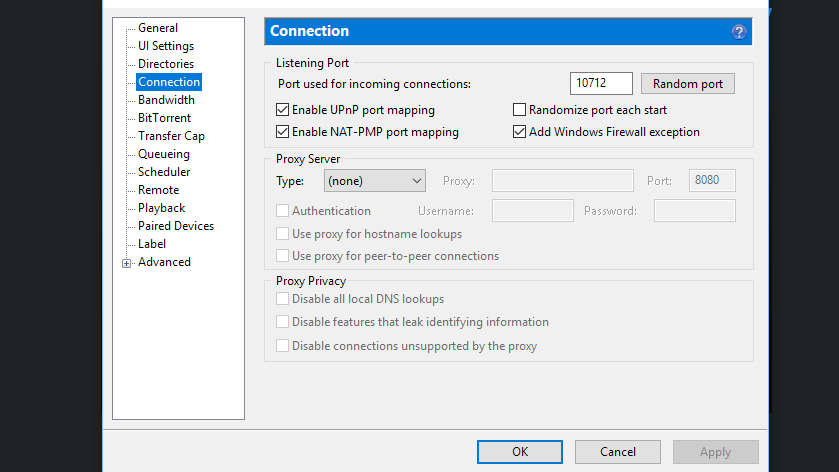
Now that you’ve configured your modem/router, it’s time to optimize your uTorrent settings. Here are the steps:
- Open uTorrent on your computer.
- Click on the menu Options in tall to left in the relative window.
- Select the voice Configuration guided of this.
- Check that there are signs of spunta beside the options Band, Net, and automatic Mapping door.
- Select a seat to you close of the menu to tendina that find in high and click on the pulsante Start the test for procedere to the test of the connection.
Step 3: Adjust Your Upload/download Settings
To further optimize your uTorrent settings, adjust your upload/download limits. Here’s how:
- Open Speedtest of Ookla.
- Click on the voice Settings in high and select the voice Kbps in correspondence of the dicitura Speed.
- Take note of the speed result.
- Access the menu Options in tall to left in the window of uTorrent.
- Select the voice Settings.
- Click on the dicitura Band put to sinister in the new window visualised.
- Adjust the maximum speed of download and upload limits based on your connection’s effective speed.
Step 4: Use a Vpn
Using a VPN can also enhance your uTorrent experience. Here’s why:
- A VPN will allow you to use the net BitTorrent anonymously, avoiding ISP tracking and malware attacks.
- You’ll be able to bypass regional blocks, censorships, and access foreign streaming catalogues.
Some reliable and cheap VPN services include NordVPN, Surfshark, Express VPN, and Privado VPN. These services can be used on all devices (PC/mac, smartphone, tablet, etc.) And have numerous servers worldwide.
Step 5: Search For Files With More Seeds
To make the most of uTorrent’s capabilities, search for files with more seeds. Here’s how:
- Use engines like Torrent Project or Torrents.Me to find rows with many seeders.
- Order the results based on the number of sources available.
Conclusion
Making uTorrent faster requires a combination of optimizing your modem/router settings and configuring your uTorrent settings correctly. By following these steps, you can significantly improve your download experience.


