
Thunderbird – Download And Setup Guide
Introduction
In today’s digital age, email clients are no longer a necessity like the weather. With web mail services becoming increasingly popular, it’s possible to manage your communications directly from your browser without installing third-party programs on your PC. However, for those who desire more functionality and features, there’s Thunderbird – a free, open-source application that can handle all your email management needs.
Thunderbird Compatibility And System Requirements
Before we dive into the download process, let’s take a look at Thunderbird’s compatibility with different operating systems and system requirements. As mentioned earlier, Thunderbird is compatible with:
- Windows 7 and above
- MacOS 10.12 Or later
- Linux (with specific libraries and packages installed)
For Windows users, here are the minimum requirements:
- Intel/AMD processor with 1GHz frequency or higher
- 1GB RAM or more (2GB for 64-bit version)
- At least 250MB free space on disk
For macOS users, the requirements are slightly different:
- Intel x86 or Apple Silicon processor
- 1GB RAM or more
- At least 500MB free space on disk
Download And Setup Guide
Now that we’ve covered the basics, let’s move on to the download and setup process.
Windows Download And Setup Guide
To download Thunderbird on Windows, follow these steps:
- Visit the Thunderbird website and click on the “Download” button.
- Open the downloaded file (.Exe) and follow the installation wizard.
- Choose your preferred language and settings.
- Select the installation location and choose whether to install additional components.
- Review the license agreement and accept it if you agree.
Macos Download And Setup Guide
To download Thunderbird on macOS, follow these steps:
- Visit the Thunderbird website and click on the “Download” button.
- Open the downloaded file (.Dmg) and drag the Thunderbird icon to your Applications folder.
- Right-click on the icon, select “Open,” and confirm the installation.
Linux Download And Setup Guide
To download Thunderbird on Linux, follow these steps:
- Visit the Thunderbird website and click on the “Download” button.
- Open a terminal window and navigate to the downloaded file location.
- Type
tar xjf thunderbird-*.Tar.Bz2to extract the contents of the file. - Move the extracted files to the
/optdirectory usingmv thunderbird /opt. - Create a symbolic link to the Thunderbird executable using
ln -s /opt/thunderbird/thunderbird /usr/local/bin/thunderbird.
Configuring Your Email Account
Once you’ve installed Thunderbird, it’s time to configure your email account.
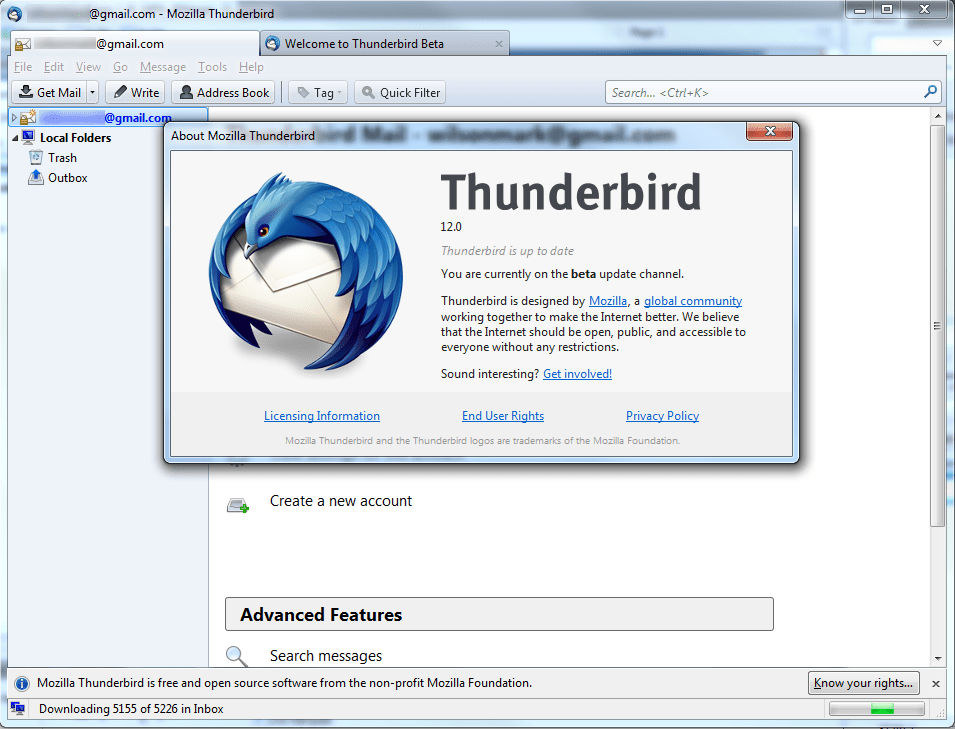
- Open Thunderbird and click on “Create a new account.”
- Enter your name, email address, and password in the respective fields.
- Select the IMAP protocol for synchronization with your email provider.
- Click “Finish” to complete the setup process.
Adding Multiple Email Accounts
If you have multiple email accounts, follow these steps:
- Open Thunderbird and click on the icon with three horizontal lines.
- Select “New account” and then “Existing email account.”
- Repeat the configuration process for each email account.
Using Extensions to Enhance Functionality
Thunderbird’s extensions can broaden its functionality and make it more user-friendly.
- Click on the icon with three horizontal lines and select “Components > Add-ons.”
- Browse through the list of available extensions and click “Add” to install one.
- Restart Thunderbird to apply the changes.
Conclusion
In conclusion, Thunderbird is a powerful email client that offers flexibility, functionality, and customization options. With its compatibility with various operating systems and system requirements, it’s an excellent choice for those who want more control over their email management. By following this guide, you’ll be able to download and set up Thunderbird on your device.
Frequently Asked Questions
Q: What are the minimum system requirements for using Thunderbird?
A: The minimum system requirements vary depending on the operating system:
- Windows 7 or later (Intel/AMD processor with 1GHz frequency or higher, 1GB RAM or more)
- MacOS 10.12 Or later (Intel x86 or Apple Silicon processor, 1GB RAM or more)
Q: Can I use Thunderbird on multiple devices?
A: Yes, you can install and use Thunderbird on multiple devices, including smartphones and tablets.
Q: What are the benefits of using extensions in Thunderbird?
A: Extensions can broaden Thunderbird’s functionality, making it more user-friendly and customizable.
Q: How do I configure my email account in Thunderbird?
A: To configure your email account, open Thunderbird, click on “Create a new account,” and follow the on-screen instructions.
Q: Can I use multiple email accounts with Thunderbird?
A: Yes, you can add multiple email accounts by following the steps outlined in this guide.
Q: Are there any security risks associated with using Thunderbird?
A: As with any software, there are potential security risks involved. However, Thunderbird is open-source and regularly updated to ensure user safety.
Q: Can I use Thunderbird offline?
A: Yes, you can use Thunderbird offline for tasks such as composing emails and managing contacts.


