
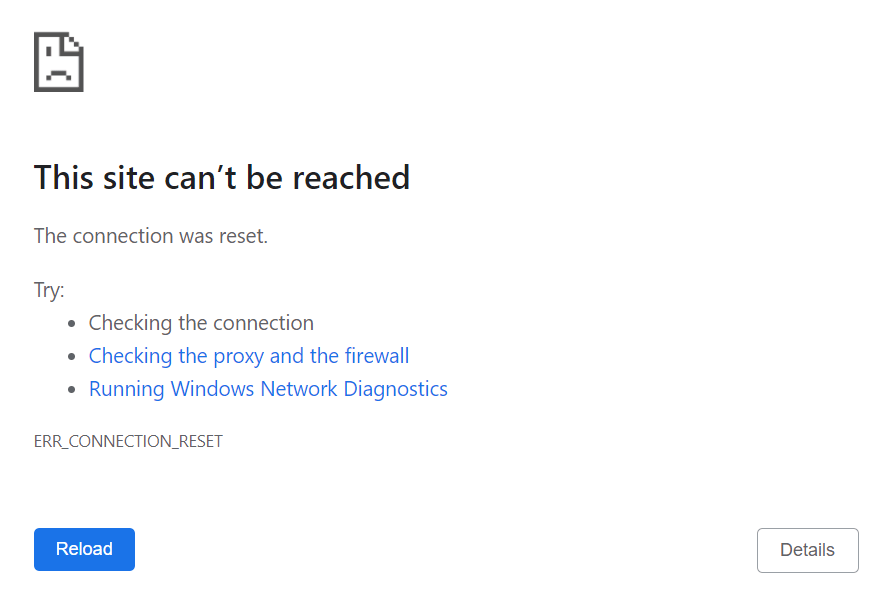
What’s Causing The Problem?
Before we dive into the solutions, let’s take a look at some of the possible causes:
- Excessive distance between your router and devices
- Absence of credit on your mobile plan
- Incorrect modem/router configuration
- DNS cache issues
Preliminary Operations (Preliminary Steps)
If you’re experiencing connectivity issues with your Wi-Fi network, follow these simple steps to resolve the problem:
- Check Your Modem/router Connection: Ensure it’s connected correctly and that the light is green.
- Restart Your Modem/router: Try restarting your device to see if it resolves the issue.
- Verify Cable Connections: Double-check that all cables are securely inserted into their respective ports.
Windows
If you’re using Windows 10, try initiating the diagnostic tool:
- Click on The Start Button: Select Settings from the menu.
- Click on Network And Internet: Choose Troubleshoot problems to initiate the diagnostic tool.
- Follow The Instructions: Let Windows diagnose and resolve the problem.
Macos
If you’re using a Mac, try initiating the diagnostic tool:
- Hold Down The Alt Key: Click on the Wi-Fi icon in the top right corner of your screen.
- Click on Open Network Diagnostics: Select Wireless diagnostics from the menu.
- Follow The Instructions: Let macOS diagnose and resolve the problem.
Android
If you’re experiencing issues with your Android device, try these steps:
- Check Your Mobile Data Settings: Ensure that Mobile Data is enabled.
- Restart Your Device: Try restarting your device to see if it resolves the issue.
- Reconfigure Your Apn: If you’re using a SIM card, ensure that the APN is correctly configured.
Ios/ipados
If you’re experiencing issues with your iPhone or iPad, try these steps:
- Restart Your Device: Try restarting your device to see if it resolves the issue.
- Reconfigure Your Apn: Ensure that the APN is correctly configured.
- Reset Network Settings: Go to Settings > General > Reset and select Reset Network Settings.
Impossible Access to The Cellular Net: How to Resolve
If you’re experiencing issues with your cellular data, try these steps:
- Check Your Mobile Plan: Ensure that you have sufficient credit on your plan.
- Restart Your Device: Try restarting your device to see if it resolves the issue.
- Reconfigure Your Apn: Ensure that the APN is correctly configured.
Impossible Access to The Net Wow FI Fastweb: How to Resolve
If you’re experiencing issues with your WOW FI service, try these steps:
- Check Your Credentials: Ensure that you’re using the correct username and password.
- Restart Your Device: Try restarting your device to see if it resolves the issue.
- Reconfigure Your Apn: Ensure that the APN is correctly configured.
Conclusion
Resolving connectivity issues doesn’t have to be a hassle! By following these simple steps, you can get back online in no time. Remember to always check your credentials and ensure that your modem/router is connected correctly.
Frequently Asked Questions (FAQs)
- What Causes The “Impossible to Access The Net” Message?
- Excessive distance between your router and devices, incorrect modem/router configuration, or DNS cache issues.
- How do I Restart my Modem/router?
- Unplug the power cord from the back of the device, wait for 30 seconds, then plug it back in.
- What’s The Difference Between a Modem And a Router?
- A modem connects you to the internet, while a router shares that connection with multiple devices.
- Why is my Cellular Data Not Working?
- Ensure that you have sufficient credit on your plan, restart your device, and reconfigure your APN if necessary.
- How do I Reset Network Settings on my Iphone or Ipad?
- Go to Settings > General > Reset and select Reset Network Settings.
- What’s The Purpose of Dns Cache?
- DNS cache stores frequently accessed websites for faster loading times, but it can also cause issues if not properly configured.
- Why am I Experiencing Issues With my Wow FI Service?
- Check your credentials, restart your device, and reconfigure your APN if necessary.
- How do I Verify Cable Connections?
- Double-check that all cables are securely inserted into their respective ports.
Note: The article provides general guidance on how to resolve common internet connectivity issues and may not be applicable to every specific situation.


