
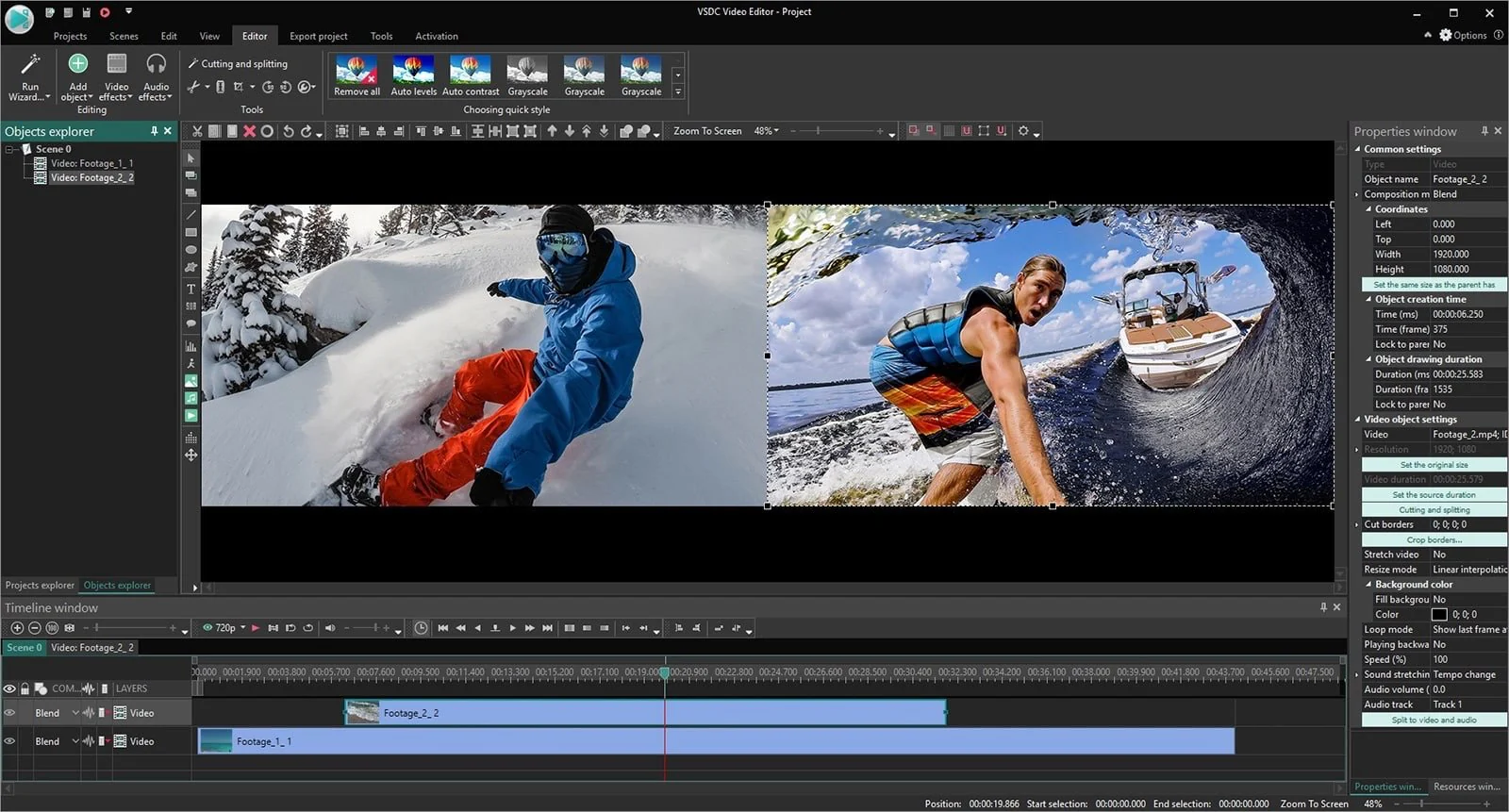
The Ultimate Guide to Mounting Videos: Top Programs And Apps
Are you ready to unleash your creativity and share your favorite memories with friends and family? In this article, we’ll explore the best programs and apps for mounting videos on Windows, macOS, and mobile devices.
Whether you’re a seasoned video editor or a beginner, you’ll find a solution that suits your needs. So, let’s dive in!
Free Video Mounting Programs
If you’re looking for free video mounting programs, here are some top picks:
Clipchamp (Windows)
Clipchamp is a powerful and user-friendly video editing program developed by Microsoft. It comes pre-installed on Windows 10 and 11 operating systems.
To use Clipchamp, follow these steps:
- Select the Clipchamp link in the Start menu.
- Enter your name and surname (optional).
- Click the “Continue” button.
- Choose the video type you want to create.
- Add media files by clicking the “Add media” button.
- Drag the files onto the timeline.
- Use the instruments and functions in the interface to edit your video.
- Export your final video by clicking the “Export” button.
Imovie (macOS)
IMovie is a free video editing program developed by Apple, specifically designed for macOS users.
To use iMovie, follow these steps:
- Select the iMovie icon in the Launchpad.
- Choose the “Create new” option.
- Select the media files you want to add.
- Drag the files onto the timeline.
- Use the instruments and functions in the interface to edit your video.
- Export your final video by clicking the “Share” button.
Professional Video Mounting Programs
If you’re looking for professional-grade video mounting programs, here are some top picks:
Davinci Resolve (Windows/macOS/Linux)
DaVinci Resolve is a powerful and feature-rich video editing program that’s free to use. It offers advanced functionalities and collaboration features.
To use DaVinci Resolve, follow these steps:
- Select the DaVinci Resolve link in your browser.
- Download and install the program on your computer.
- Follow the setup wizard to create a new project.
- Add media files by clicking the “Import” button.
- Use the instruments and functions in the interface to edit your video.
- Export your final video by clicking the “Export” button.
Avidemux (Windows/macOS/Linux)
Avidemux is a free, open-source video editing program that’s compatible with Windows, macOS, and Linux operating systems.
To use Avidemux, follow these steps:
- Select the Avidemux link in your browser.
- Download and install the program on your computer.
- Follow the setup wizard to create a new project.
- Add media files by clicking the “Open” button.
- Use the instruments and functions in the interface to edit your video.
- Export your final video by clicking the “Export” button.
Adobe Premiere Pro (Windows/macOS)
Adobe Premiere Pro is a professional-grade video editing program that requires a subscription to the Creative Cloud suite.
To use Adobe Premiere Pro, follow these steps:
- Select the Adobe Premiere Pro link in your browser.
- Sign up for a free trial or subscription.
- Follow the setup wizard to create a new project.
- Add media files by clicking the “Import” button.
- Use the instruments and functions in the interface to edit your video.
- Export your final video by clicking the “Export” button.
Final Cut Pro (macOS)
Final Cut Pro is a professional-grade video editing program developed by Apple, specifically designed for macOS users.
To use Final Cut Pro, follow these steps:
- Select the Final Cut Pro link in your browser.
- Sign up for a free trial or subscription.
- Follow the setup wizard to create a new project.
- Add media files by clicking the “Import” button.
- Use the instruments and functions in the interface to edit your video.
- Export your final video by clicking the “Export” button.
Online Video Mounting Programs
If you’re looking for online video mounting programs, here are some top picks:
Video Candy
Video Candy is an easy-to-use online video editing program that’s free to use.
To use Video Candy, follow these steps:
- Select the Video Candy link in your browser.
- Upload your media files by clicking the “Add files” button.
- Use the instruments and functions in the interface to edit your video.
- Export your final video by clicking the “Export” button.
Clideo
Clideo is an online video editing program that offers a range of features and functionality.
To use Clideo, follow these steps:
- Select the Clideo link in your browser.
- Upload your media files by clicking the “Add files” button.
- Use the instruments and functions in the interface to edit your video.
- Export your final video by clicking the “Export” button.
Animoto
Animoto is an online video editing program that’s designed for creating presentations and social media content.
To use Animoto, follow these steps:
- Select the Animoto link in your browser.
- Upload your media files by clicking the “Add files” button.
- Use the instruments and functions in the interface to edit your video.
- Export your final video by clicking the “Export” button.
Wevideo
WeVideo is an online video editing program that offers a range of features and functionality.
To use WeVideo, follow these steps:
- Select the WeVideo link in your browser.
- Upload your media files by clicking the “Add files” button.
- Use the instruments and functions in the interface to edit your video.
- Export your final video by clicking the “Export” button.
Mobile Video Mounting Apps
If you’re looking for mobile video mounting apps, here are some top picks:
Kinemaster (Android/iOS/iPadOS)
KineMaster is a powerful and feature-rich video editing app that’s available for Android, iOS, and iPadOS devices.
To use KineMaster, follow these steps:
- Download and install the KineMaster app on your device.
- Upload your media files by clicking the “Add” button.
- Use the instruments and functions in the interface to edit your video.
- Export your final video by clicking the “Export” button.
Video: Cut Join (Android)
Video: Cut Join is a free video editing app for Android devices that allows you to cut, join, and add text to your videos.
To use Video: Cut Join, follow these steps:
- Download and install the Video: Cut Join app on your device.
- Upload your media files by clicking the “Add” button.
- Use the instruments and functions in the interface to edit your video.
- Export your final video by clicking the “Export” button.
Imovie (iOS/iPadOS)
IMovie is a free video editing app for iOS and iPadOS devices that’s designed for creating high-quality videos.
To use iMovie, follow these steps:
- Download and install the iMovie app on your device.
- Upload your media files by clicking the “Add” button.
- Use the instruments and functions in the interface to edit your video.
- Export your final video by clicking the “Export” button.
In conclusion, mounting videos is a breeze with these top programs and apps. Whether you’re a seasoned pro or a beginner, there’s a solution that suits your needs. So, go ahead and unleash your creativity!
What’s Next?
If you have any questions or need further assistance, feel free to ask in the comments section below.
Don’t forget to follow me for more tech-related content!
Happy video editing!


