
What is The Operating System of a Computer?
As a computer user, have you ever wondered what makes your device tick? The operating system (OS) is the brain behind your computer, smartphone, or tablet. It’s the software that manages all the hardware components and allows you to interact with your device.
In this article, we’ll delve into the world of operating systems, exploring what they do, how they work, and which ones are most popular. We’ll also discuss how to install an operating system on a computer and provide some tips for choosing the right one for your needs.
What Does an Operating System Do?
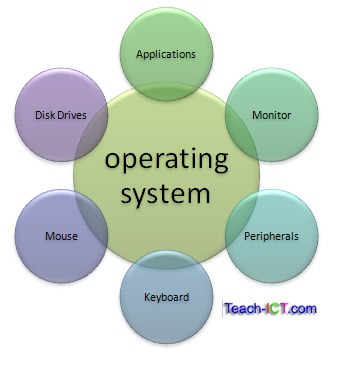
An operating system is responsible for managing the hardware components of your device, such as the processor, memory (RAM), storage drive, and peripherals like the keyboard, mouse, and monitor. It also manages the software applications you run on your device, ensuring they have access to the necessary resources.
Think of an operating system like a conductor leading an orchestra. Just as the conductor ensures each musician plays their instrument in harmony with the others, an operating system coordinates the activities of all the hardware components and software applications on your device.
Types of Operating Systems
There are several types of operating systems, each with its own strengths and weaknesses. Here are some of the most popular ones:
Windows
Windows is the most widely used operating system for desktops, laptops, and tablets. It’s developed by Microsoft and comes in various versions, including Windows 10 and Windows 11.
- Windows is compatible with a wide range of hardware configurations.
- It has a large market share and a vast ecosystem of software applications.
- However, it can be resource-intensive and may require more maintenance than other operating systems.
Macos
MacOS is the operating system used by Apple devices, such as MacBooks, iMacs, and Mac Pros. It’s known for its ease of use, security features, and seamless integration with other Apple products.
- MacOS is highly secure and resistant to malware.
- It has a user-friendly interface and a wide range of built-in applications.
- However, it may not be as compatible with third-party hardware as Windows is.
Linux
Linux is an open-source operating system that’s free to download and use. It’s highly customizable and can run on a wide range of hardware configurations.
- Linux is highly secure and resistant to malware.
- It’s free and open-source, making it an attractive option for those who want to save money.
- However, it may require more technical expertise to set up and maintain than other operating systems.
Chrome Os
Chrome OS is a lightweight operating system developed by Google for Chromebooks. It’s designed for basic tasks like browsing the web, checking email, and streaming media.
- Chrome OS is highly secure and resistant to malware.
- It’s easy to use and requires minimal maintenance.
- However, it may not be suitable for heavy-duty tasks or running resource-intensive applications.
How to Install an Operating System on a Computer
Installing an operating system on a computer can be a complex process, but it’s relatively straightforward. Here are the general steps:
- Create a Bootable Usb Drive: You’ll need a USB drive with at least 8GB of free space. You can use a tool like Rufus to create a bootable USB drive.
- Download The Operating System: You’ll need to download the operating system you want to install from the official website or through another source.
- Insert The Usb Drive And Reboot Your Computer: Insert the USB drive into your computer and reboot it. The operating system will load from the USB drive, and you can follow the on-screen instructions to complete the installation process.
Tips For Choosing an Operating System
Choosing the right operating system for your needs can be overwhelming, but here are some tips to help you make a decision:
- Consider Your Hardware: Make sure the operating system you choose is compatible with your computer’s hardware configuration.
- Think About Your Usage: If you only need to browse the web and check email, Chrome OS might be a good option. For more heavy-duty tasks, Windows or macOS might be better suited.
- Research Security Features: Consider the security features of each operating system, such as malware protection and firewall settings.
Conclusion
In conclusion, an operating system is the software that manages all the hardware components and allows you to interact with your device. There are several types of operating systems available, each with its own strengths and weaknesses. By considering factors like compatibility, security features, and usage requirements, you can choose the right operating system for your needs.
Faqs
Here are some frequently asked questions about operating systems:
Q: What is an Operating System?
A: An operating system is software that manages all the hardware components of a device, such as the processor, memory (RAM), storage drive, and peripherals like the keyboard, mouse, and monitor.
Q: Which Operating System is Most Popular?
A: Windows is the most widely used operating system for desktops, laptops, and tablets.
Q: Is Linux Secure?
A: Yes, Linux is highly secure and resistant to malware. However, it may require more technical expertise to set up and maintain than other operating systems.
Q: Can I Install an Operating System on a Chromebook?
A: Yes, you can install an operating system on a Chromebook, but it’s not recommended unless you’re comfortable with the process and have a good understanding of Linux.
Q: What is The Difference Between Windows 10 And Windows 11?
A: Windows 11 is the latest version of the Windows operating system, offering improved performance, security features, and a more streamlined interface. However, it may require more resources than Windows 10 to run smoothly.


