
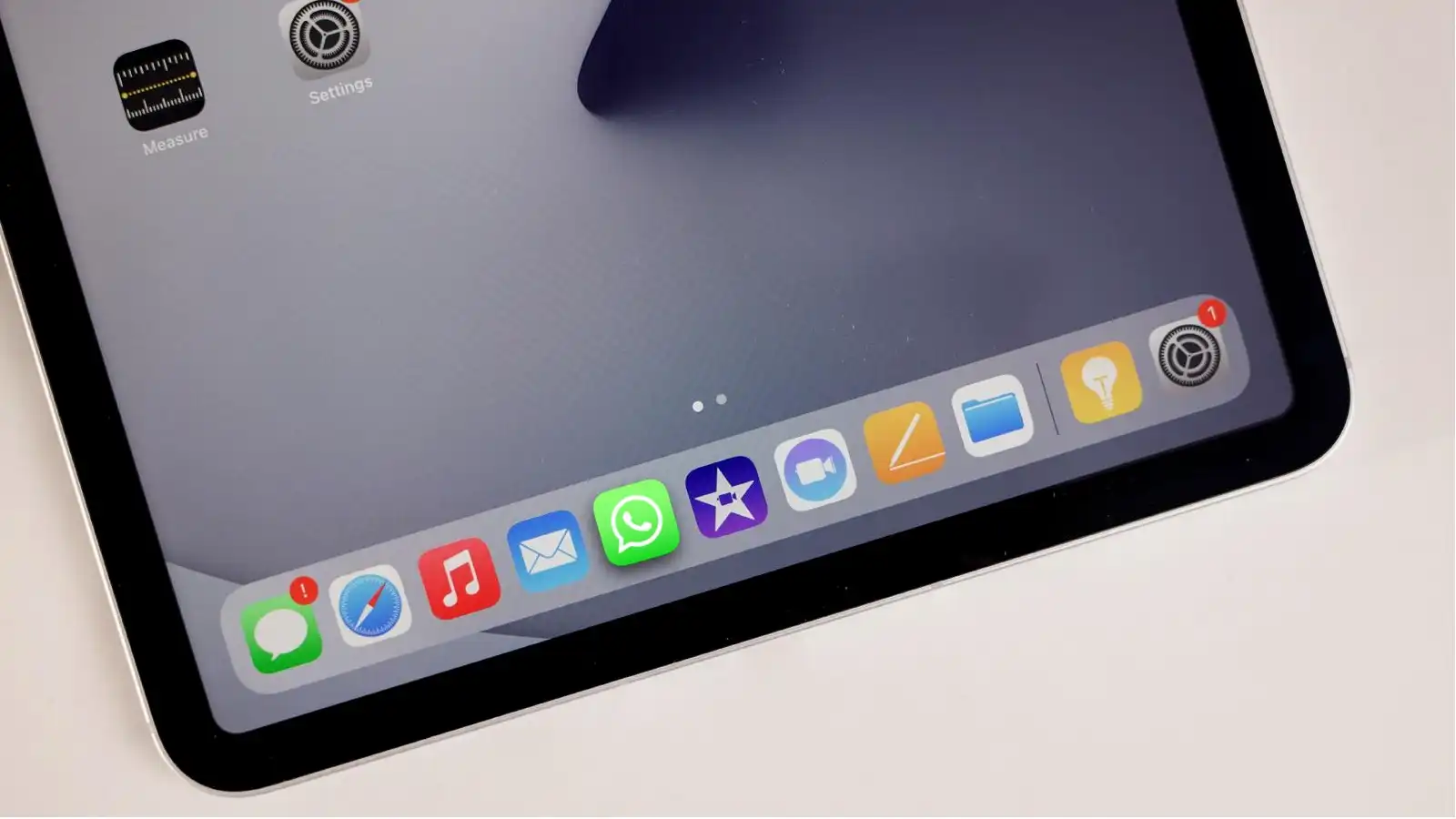
How to Use Whatsapp on Ipad Without Sim Card
Are you looking for ways to use WhatsApp on your iPad without a SIM card? You’re not alone! Many users have been searching for solutions to this problem, and we’ve got the answers right here.
What is Whatsapp?
For those who may be new to the world of messaging apps, WhatsApp is a popular messaging service that allows users to send messages, make voice and video calls, and share media with friends and family. It’s available on both iOS and Android devices.
The Problem: No Official Whatsapp App For Ipad
Unfortunately, there is no official WhatsApp app for iPad. This means that you can’t simply download the app from the App Store and start using it on your tablet. But don’t worry, we’ve got some workarounds for you!
Method 1: Using Whatsapp Web
The first method to use WhatsApp on your iPad without a SIM card is by accessing WhatsApp Web through Safari. Yes, you read that right – WhatsApp has a web version! Here’s how it works:
- Open Safari on your iPad and go to www.Whatsapp.Com
- Tap the three dots at the top right corner of the screen and select “Desktop mode”
- You’ll see the WhatsApp Web interface, where you can scan a QR code using your smartphone
- Open WhatsApp on your smartphone, tap the chat icon, and select “WhatsApp Web”
- Scan the QR code displayed on your iPad with your smartphone’s camera
- Once scanned, you’ll be able to access your WhatsApp conversations on your iPad
Method 2: Using Third-party Apps
Another way to use WhatsApp on your iPad without a SIM card is by using third-party apps available in the App Store. These apps are designed to replicate the WhatsApp Web experience on your tablet.
- Search for “WhatsApp” in the App Store and select an app that meets your requirements
- Download and install the app on your iPad
- Follow the instructions provided by the app to set up and use WhatsApp on your iPad
Method 3: Using Whatsapp Without a Phone
If you want to use WhatsApp on your iPad without a SIM card or phone, there’s still a way! You can create a link to WhatsApp Web, which will allow you to access the service quickly.
- Go to Safari on your iPad and open www.Whatsapp.Com
- Tap the three dots at the top right corner of the screen and select “Add to Home Screen”
- Name the shortcut as “WhatsApp” and tap “Add”
- You’ll see a new icon on your home screen, which will take you directly to WhatsApp Web when tapped
Using Whatsapp Without a Sim Card: Faqs
Here are some frequently asked questions about using WhatsApp on iPad without a SIM card:
Q: Is it possible to use WhatsApp on iPad without a SIM card?
A: Yes, there are several methods to access WhatsApp on your iPad without a SIM card.
Q: Can I use WhatsApp on my iPad with just Wi-Fi?
A: Yes, you can use WhatsApp on your iPad using only Wi-Fi. However, keep in mind that this may not provide the same experience as using a phone.
Q: Do I need to have my smartphone nearby to use WhatsApp on my iPad?
A: No, you don’t necessarily need to have your smartphone nearby. You can create a link to WhatsApp Web and access it directly from your iPad home screen.
Conclusion
In conclusion, while there is no official WhatsApp app for iPad, there are still ways to use the service on your tablet without a SIM card. By using WhatsApp Web or third-party apps, you can stay connected with friends and family on your iPad. We hope this article has been helpful in providing solutions to your WhatsApp-related queries!


