
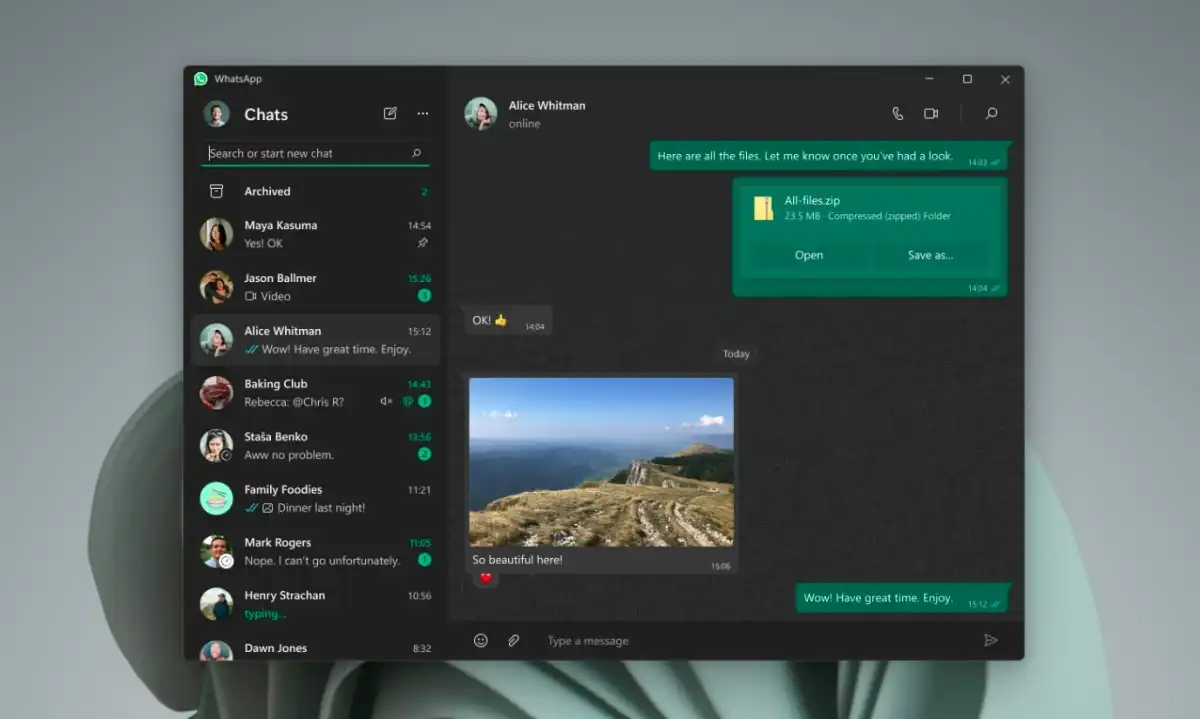
Whatsapp For Pc: A Comprehensive Guide
Are you looking for a way to use WhatsApp on your computer? Look no further! In this article, we will guide you through the process of installing and using WhatsApp on your PC.
What is Whatsapp?
WhatsApp is a popular messaging app that allows users to send text messages, make voice and video calls, and share media files with their contacts. It is available for both Android and iOS devices, but did you know that you can also use it on your computer?
Why Use Whatsapp On Pc?
There are several reasons why you might want to use WhatsApp on your PC:
- You don’t have a smartphone or prefer not to use one.
- You want to access your WhatsApp account from multiple devices at the same time.
- You need to access your messages and contacts without having to switch between devices.
Installing Whatsapp On PC
There are two ways to install WhatsApp on your PC: Using the official client or using WhatsApp Web. Let’s take a look at both options:
Method 1: Installing The Official Client
If you have Windows 10 or macOS 11 or later, you can download and install the official WhatsApp client directly from the Microsoft Store or Mac App Store.
- To do this, follow these steps:
- Go to the Microsoft Store (for Windows) or Mac App Store (for macOS).
- Search for “WhatsApp” in the search bar.
- Click on the result to open the WhatsApp page.
- Click on the “Get” button to download and install the app.
Method 2: Using Whatsapp Web
If you don’t have a compatible operating system or prefer not to use the official client, you can use WhatsApp Web. This method allows you to access your WhatsApp account directly from your browser.
- To do this, follow these steps:
- Open your web browser and go to the WhatsApp Web page.
- Scan the QR code displayed on the screen using your smartphone’s camera.
- Once scanned, you will be logged in to your WhatsApp account on your computer.
Using Whatsapp On PC
Once you have installed WhatsApp on your PC, you can start using it as you would on a mobile device. Here are some tips to get you started:
- To access your messages and contacts, go to the “Chats” tab.
- To make voice or video calls, click on the call icon next to a contact’s name.
- To share media files, click on the paperclip icon in the chat window.
Tips And Tricks
Here are some additional tips and tricks to help you get the most out of WhatsApp on your PC:
- Use the “Notifications” tab to customize your notification settings.
- Take advantage of the “Webcam” feature to take photos or record videos directly from your computer.
- Experiment with different emojis and stickers to personalize your messages.
Conclusion
Using WhatsApp on your PC is a great way to stay connected with friends and family without having to switch between devices. With these simple steps, you can easily install and use WhatsApp on your computer. Happy chatting!
Frequently Asked Questions (FAQs)
Here are some frequently asked questions about using WhatsApp on PC:
-
Q: Can I Use Whatsapp on Multiple Devices at The Same Time?
A: Yes, with WhatsApp Web, you can access your account from multiple devices simultaneously. -
Q: Is Whatsapp Available For Both Windows And Macos?
A: Yes, the official client is available for both Windows 10 and macOS 11 or later. -
Q: Can I Use Whatsapp on a PC Without a Smartphone?
A: Yes, you can use WhatsApp Web directly from your browser without needing a smartphone. -
Q: How do I Install Whatsapp on my Pc?
A: You can download and install the official client from the Microsoft Store or Mac App Store, or use WhatsApp Web by scanning the QR code with your smartphone’s camera. -
Q: Can I Share Media Files Using Whatsapp on my Pc?
A: Yes, you can share photos, videos, and other media files directly from your computer to your contacts. -
Q: How do I Customize my Notification Settings in Whatsapp on Pc?
A: To access the notifications tab, go to the “Settings” menu and click on the “Notifications” option. -
Q: Can I Use Whatsapp on my PC Without an Internet Connection?
A: No, you will need a stable internet connection to use WhatsApp Web or the official client on your PC. -
Q: How do I Take Photos or Record Videos Directly From my Computer Using Whatsapp on Pc?
A: To take photos or record videos, click on the webcam icon in the chat window and follow the prompts to capture and share your media files.


