
Where Do I Save Audio Files on Whatsapp?
Are you tired of searching for saved audio files on WhatsApp? Do you want to recover a file that was forwarded or got by means of the messaging app? Look no further! In this article, we will guide you through the process of saving and recovering audio files on WhatsApp, regardless of whether you’re using an Android device, an iPhone, or a computer.
Why Can’t I Find Saved Audio Files on Whatsapp?
Before we dive into the solution, let’s understand why saved audio files are not always visible. On WhatsApp for Android, saved audio files are stored in a folder within the app, but this folder is not easily accessible. Similarly, on WhatsApp for iPhone, the safety of data and device security restricts direct access to the memory aside from applications.
How Do I Recover Saved Audio Files on Whatsapp For Android?
To recover saved audio files on WhatsApp for Android, follow these steps:
- Access The App: Open the Google Files app, which is pre-installed on all devices with Google services.
- Provide Permissions: Grant the app permission to access your device’s memory if required.
- Navigate to Audio Folder: Tap on the “Sfoglia” (Browse) tab and select “Audio” from the list of categories.
- Select Whatsapp Audio: Choose “WhatsApp Audio” from the menu, and you will find all saved audio files, including those in format .*Opus, along with other media files forwarded or got by means of WhatsApp.
What If I Can’t Find a Specific Saved Audio File?
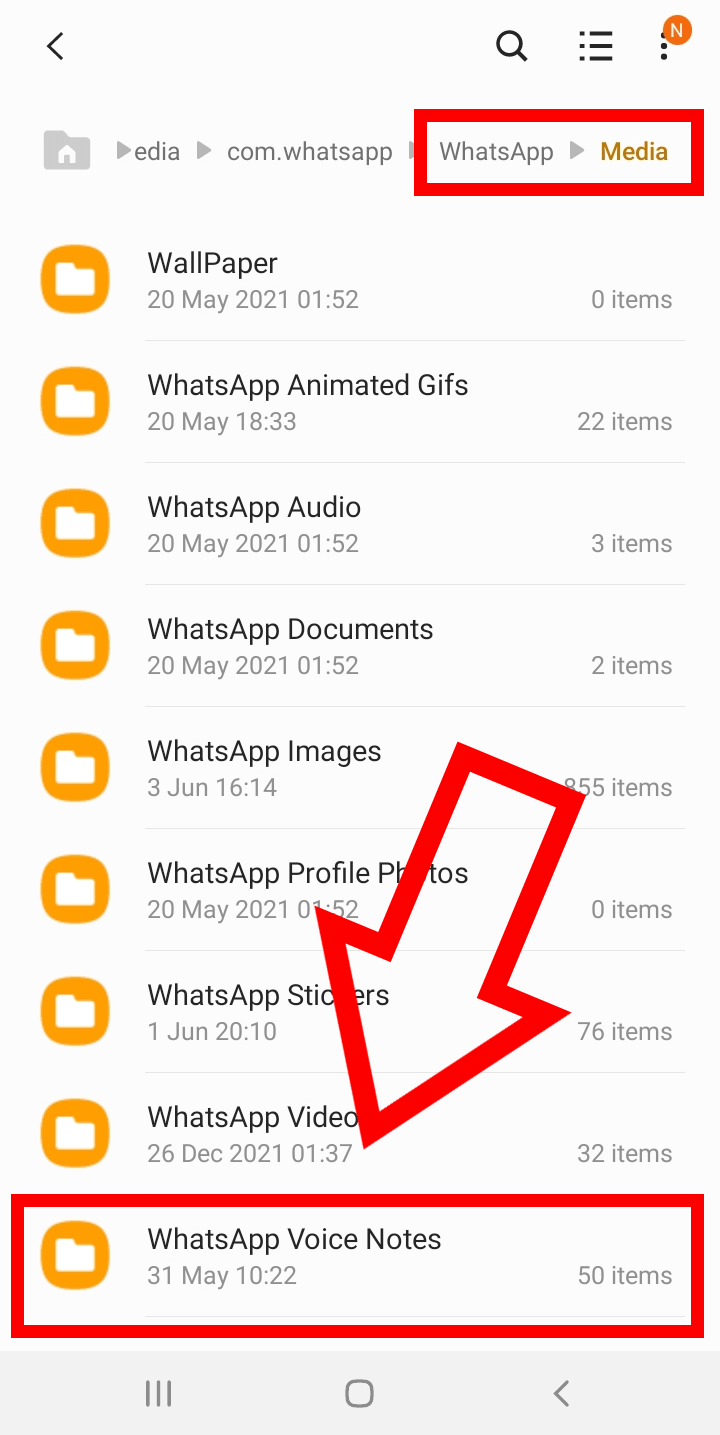
If you’re unable to locate a specific saved audio file, try accessing it directly through the multimedia folder. To do this:
- Return to Files Home Screen: Go back to the Google Files home screen.
- Select Inner Memory: Tap on “Inner Memory” from the list of devices and storage options.
- Navigate to Whatsapp Folder: Select the WhatsApp folder, then “Media,” followed by “com.Whatsapp,” and finally “WhatsApp.”
- Access Saved Audio Files: You’ll find all saved audio files in this folder, organized under sub-folders based on date.
How Do I Recover Saved Audio Files on Whatsapp For Iphone?
Recovering saved audio files on WhatsApp for iPhone is a bit more complex due to Apple’s strict security policies. However, you can use the following workaround:
- Export Chat: Open WhatsApp and select the conversation containing the desired saved audio file.
- Swipe Right: Swipe right across the conversation to reveal additional options.
- Choose Export Chat: Select “Export Chat” from the menu.
- Select Rows as Export Format: Choose “Rows” as the export format.
- Save Conversation on Rows: Save the exported chat on Rows, a third-party app.
How Do I Recover Saved Audio Files on Whatsapp For Computer?
Recovering saved audio files on WhatsApp for computer is straightforward:
- Associate Whatsapp Account: Associate your WhatsApp account with your computer using the QR code.
- Access Whatsapp Chat: Open WhatsApp and navigate to the conversation containing the desired saved audio file.
- Right-click on Message: Right-click on the message containing the saved audio file.
- Select Save With Name…: Choose “Save with name…” from the menu, select a folder, and save the file.
Conclusion
Saving and recovering audio files on WhatsApp can be a bit tricky, but by following these steps, you’ll be able to access your saved audio files across all platforms: Android, iPhone, and computer. Remember to always follow proper safety protocols when handling sensitive data.
Frequently Asked Questions (FAQs)
-
Q: Where do I Find Saved Audio Files on Whatsapp For Android?
A: Saved audio files are stored in the Google Files app, accessible by navigating to the “Audio” category and selecting “WhatsApp Audio.” -
Q: How do I Recover a Specific Saved Audio File if It’s Not Visible in Whatsapp?
A: Try accessing it directly through the multimedia folder within the Google Files app. -
Q: Can I Export Whatsapp Conversations With Audio Files on an Iphone?
A: Yes, you can use the “Rows” app to export WhatsApp conversations and save audio files. -
Q: How do I Recover Saved Audio Files on Whatsapp For Computer?
A: Associate your WhatsApp account with your computer using the QR code, access the conversation containing the desired saved audio file, and right-click on the message to save it. -
Q: What if I’m Unable to Find a Specific Saved Audio File on Whatsapp?
A: Check if it’s stored in the multimedia folder within Google Files or try exporting the conversation using Rows. -
Q: Can I Convert Saved Audio Files From .*Opus Format to Mp3 or Another Format?
A: Yes, you can use third-party apps like VLC to convert saved audio files to other formats. -
Q: How do I Recover Saved Audio Files if They’re Not Visible in Whatsapp Conversations on Computer?
A: Check the multimedia folder within Google Files or try accessing it directly through the “Inner Memory” option. -
Q: Is it Safe to Handle Saved Audio Files From Whatsapp?
A: Always follow proper safety protocols when handling sensitive data, such as saved audio files.


