
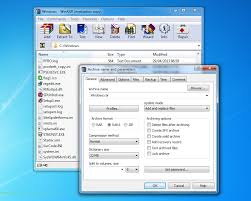
Winrar Free: A Comprehensive Guide
Are you looking for a free alternative to manage compressed files? Look no further than WinRAR Free! In this article, we will delve into the world of file compression and extraction, exploring the features and benefits of using WinRAR Free.
What is Winrar?
WinRAR is a powerful file archiver that supports a wide range of compression formats, including ZIP, 7Z, and RAR. It’s a commercial software, but we’ll show you how to get it for free!
Why Choose Winrar Free?
There are several reasons why WinRAR Free stands out from the competition:
- Supports Multiple File Formats: WinRAR Free supports various compression formats, including ZIP, 7Z, RAR, and more.
- Easy-to-use Interface: The program boasts an intuitive interface that makes it easy to navigate and manage compressed files.
- Fast Compression And Extraction: WinRAR Free is optimized for speed, allowing you to quickly compress and extract files.
How to Download And Install Winrar Free
To get started with WinRAR Free, follow these steps:
- Visit The Official Website: Head over to the WinRAR official website and click on the “Download” button.
- Select Your Operating System: Choose the correct version of WinRAR Free for your Windows or macOS operating system.
- Follow The Installation Instructions: Carefully follow the installation prompts to install WinRAR Free on your device.
How to Use Winrar Free
Using WinRAR Free is a breeze! Here’s a step-by-step guide:
- Launch The Program: Double-click on the WinRAR icon to launch the program.
- Add Files to Compress: Select the files you want to compress and drag them into the WinRAR window.
- Choose Your Compression Settings: Adjust the compression level, password protection, and other settings as needed.
- Start The Compression Process: Click on the “OK” button to begin the compression process.
Winrar Free Alternatives
While WinRAR Free is an excellent choice for managing compressed files, there are alternative options available:
- 7-Zip: A free, open-source file archiver that supports multiple formats.
- Keka: A free application for macOS and Linux that allows you to compress and extract files.
System Requirements
To run WinRAR Free on your device, ensure that it meets the following system requirements:
- Windows: Windows XP/2003/Server 2008/7/8/10 (32-bit or 64-bit)
- Macos: MacOS X
- Android: Android devices with the Play Store
- Ios: IOS/iPadOS devices
Conclusion
WinRAR Free is a powerful and easy-to-use file archiver that supports multiple formats, including ZIP, 7Z, and RAR. With its fast compression and extraction capabilities, WinRAR Free is an excellent choice for managing compressed files.
Faqs
- Is Winrar Free Safe to Use?
- Yes, WinRAR Free is a legitimate program with no malware or viruses.
- Can I Use Winrar Free on Multiple Devices?
- Yes, you can install and use WinRAR Free on multiple devices, but ensure that each device meets the system requirements.
- Does Winrar Free Support Encrypted Files?
- Yes, WinRAR Free supports password-protected files for added security.
- Can I Compress Files Using Winrar Free Online?
- No, WinRAR Free is not available as an online service.
- Is There a Version of Winrar Free For Linux?
- No, the official WinRAR Free software only supports Windows and macOS operating systems.
- Does Winrar Free Support Extracting Files in Different Formats?
- Yes, WinRAR Free supports extracting files in various formats, including ZIP, 7Z, RAR, and more.
- Can I Create a Self-extracting Archive With Winrar Free?
- Yes, you can create self-extracting archives using WinRAR Free.
- Is There a Trial Version of Winrar Free Available?
- No, the official WinRAR Free software is a full-featured program with no trial period.
Additional Resources
For more information on file compression and extraction, visit the following resources:
- Winrar Official Website: Visit the official website for download links, user manuals, and FAQs.
- 7-Zip Website: Explore the 7-Zip website for alternative file archiving options.
- Keka Website: Check out the Keka website for macOS and Linux-compatible file compression software.


